
If you have followed our previous tutorial on how to install Ubuntu 26.04 LTS Desktop on VirtualBox, the next important step is to update your newly installed Ubuntu system.
In this guide, you will learn how to check the installed Ubuntu version, update package repositories, upgrade installed packages, and reboot Ubuntu if required.
Check the Installed Ubuntu Version
Before updating Ubuntu, you can check which version is currently installed on your system.
Open the Terminal and run:
lsb_release -a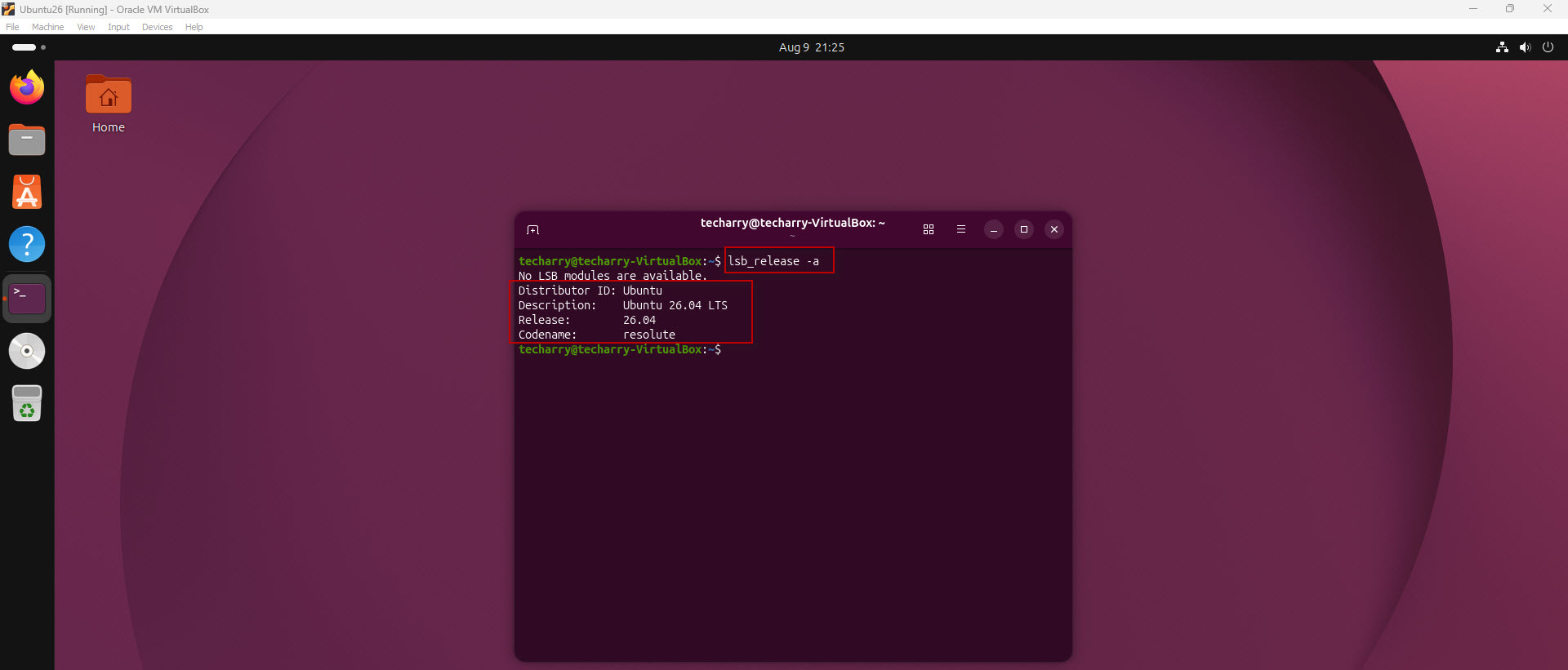
This command displays information about the installed Ubuntu release.
Another Way to Check Ubuntu Version
You can also use the following command:
cat /etc/os-release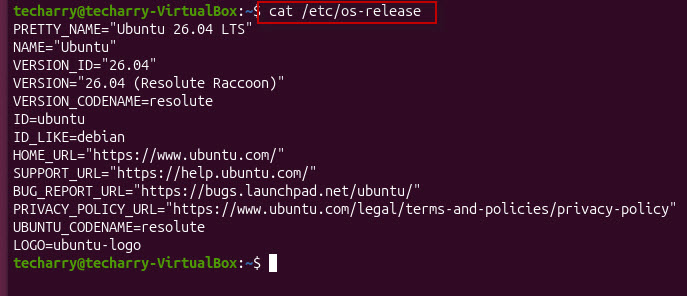
This displays detailed information about the installed operating system, including the Ubuntu version.
Update Ubuntu Package Lists
Ubuntu uses software repositories to obtain information about available packages and their latest versions.
To refresh the package lists, run:
sudo apt update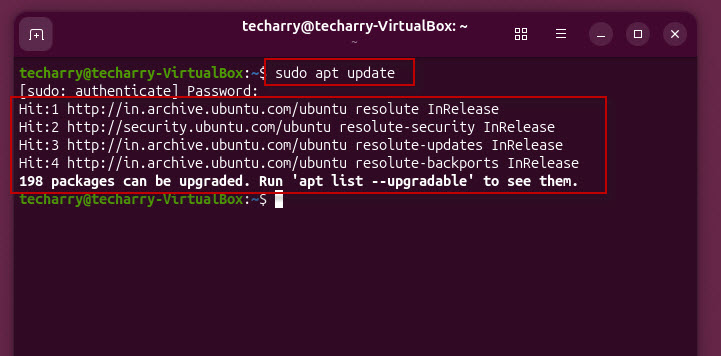
After running: sudo apt update
Ubuntu will ask for the password of your currently logged-in user.
Enter your user password and press Enter.
Ubuntu will then contact the configured repositories and download the latest package information.
You may see output indicating that some packages can be upgraded, for example: 198 packages can be upgraded.
Note : If you run: apt update
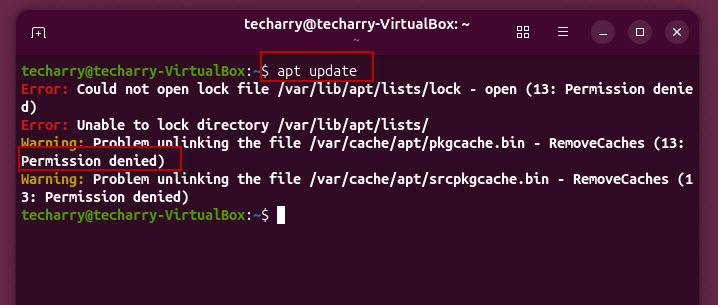
without sudo, you may receive a permission denied or permission required error because updating the package information requires administrative privileges.
What Does apt update Do?
It is important to understand that: sudo apt update does not actually upgrade your installed software.
It refreshes the local package information and obtains the latest information about available packages and their versions from the configured Ubuntu repositories.
To actually install the available updates, you need to use apt upgrade.
Upgrade Installed Packages
After updating the package lists, run:
sudo apt upgrade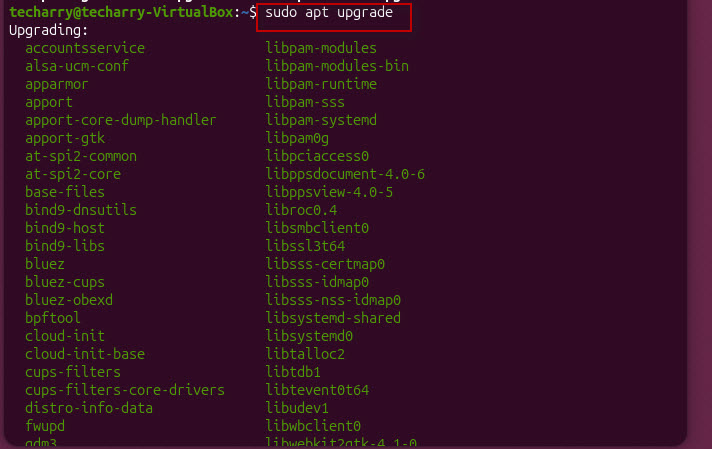
Ubuntu will display the packages that need to be upgraded and ask you to confirm the operation.
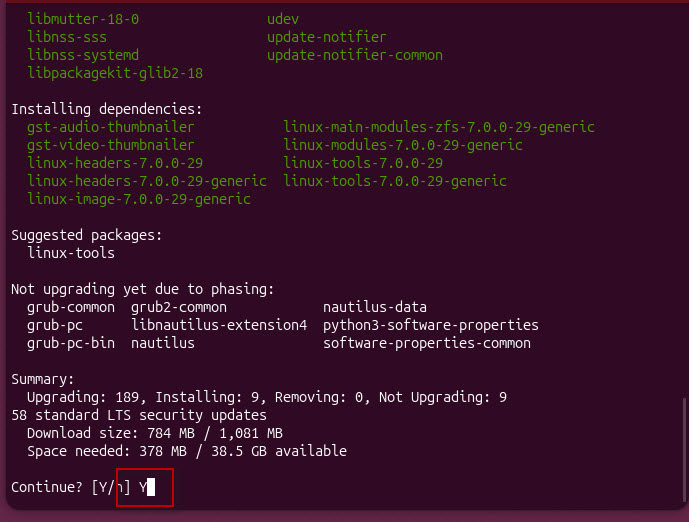
Type: Y and press Enter.
Ubuntu will then download and install the required package updates.
The process may take several minutes depending on:
- Number of packages being updated
- Internet connection speed
- System performance
- Size of the downloaded updates
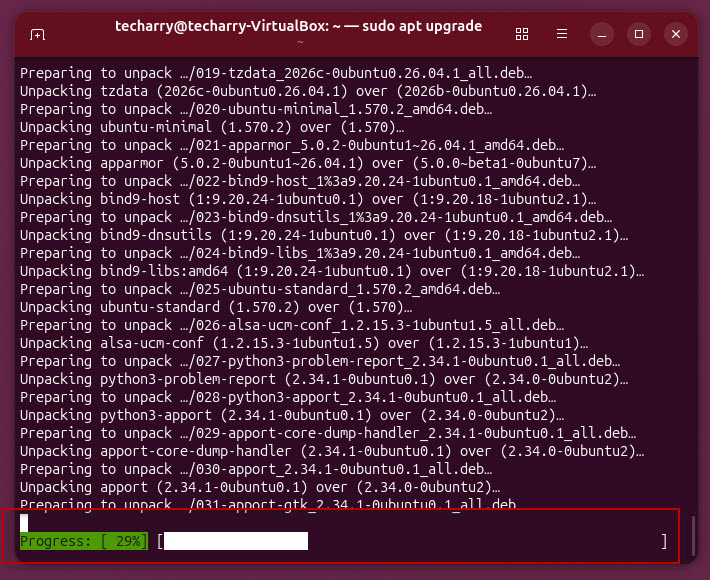
Once the process is completed, your installed Ubuntu packages will be updated to the latest versions available from the configured repositories.
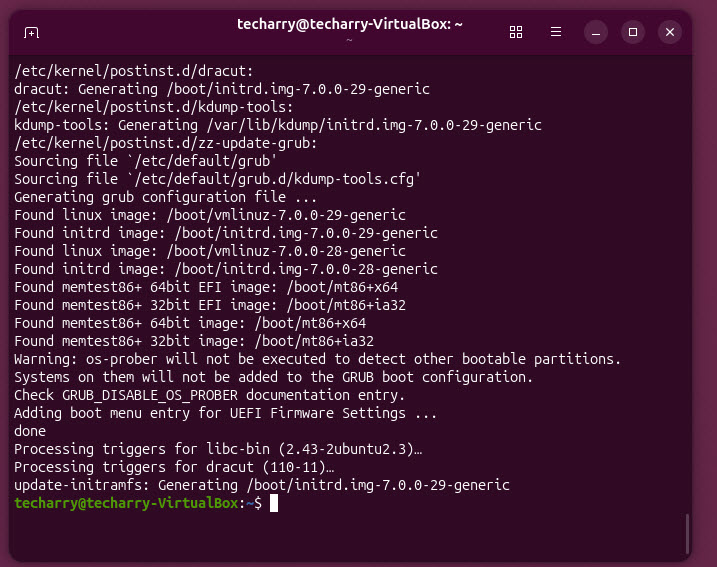
Update and Upgrade Ubuntu Using One Command
Instead of running the two commands separately, you can combine them into a single command:
sudo apt update && sudo apt upgradeHere:
- sudo apt update refreshes the package lists.
- && runs the second command only if the first command completes successfully.
- sudo apt upgrade installs available package updates.
This is a convenient command to use when you want to update your Ubuntu system in one step.
Reboot Ubuntu After Updating
Most package updates do not require an immediate reboot. However, certain updates, such as kernel or other core system components, may require a restart to fully take effect.
If required, you can reboot Ubuntu using:
rebootIf administrative privileges are required, use:
sudo rebootSummary of Commands
Keeping Ubuntu updated helps ensure that your system has the latest available package updates, bug fixes, and security updates for your installed release.
| Command | Purpose |
|---|---|
lsb_release -a |
Check Ubuntu version |
cat /etc/os-release |
Display OS and version information |
sudo apt update |
Refresh package lists |
sudo apt upgrade |
Upgrade installed packages |
sudo apt update && sudo apt upgrade |
Update package lists and upgrade packages |
sudo reboot |
Restart Ubuntu |
Keeping Ubuntu updated helps ensure that your system has the latest available package updates, bug fixes, and security updates for your installed release.





This Post Has One Comment
Comments are closed.