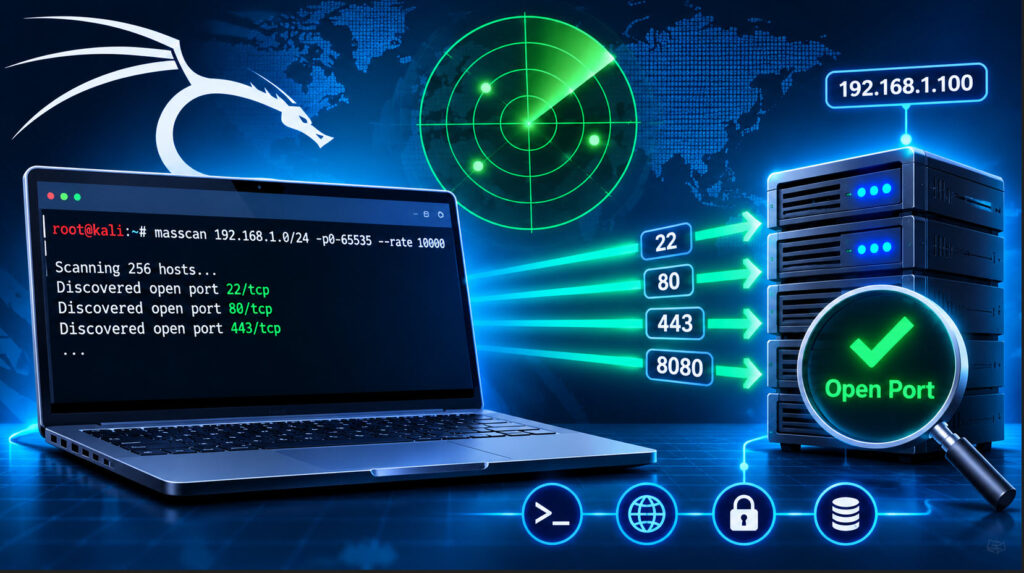
Masscan is a high-speed port scanning tool used to identify open ports on target IP addresses and network ranges. It is designed to scan large networks quickly and can scan significantly faster than traditional port scanners such as Nmap.
Masscan produces results similar to Nmap by identifying open ports on target systems. It is particularly useful during network reconnaissance and vulnerability assessment when you need to scan multiple hosts or a large range of ports.
Masscan comes pre-installed in Kali Linux. In this tutorial, we will explore some commonly used Masscan commands and learn how to perform different types of port scans.
Note: Only scan systems and networks that you own or have explicit permission to test.
1. Check Masscan Help
To view the available options and commands, open the Kali Linux terminal and execute:
masscan --helpThis displays the available scanning options, port specifications, output formats, and other configuration parameters.
2. Check the Installed Version
To check which version of Masscan is installed on your Kali Linux system, use:
masscan --version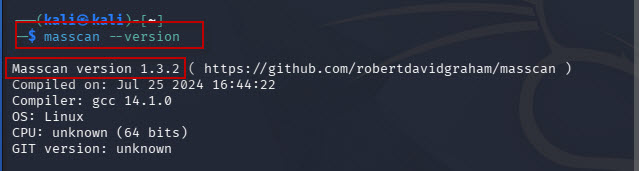
If Masscan is not installed, you can download and install it from its official GitHub repository:
3. Commonly Used Masscan Commands
Let’s explore some commonly used Masscan commands for port scanning.
Scan a Single Port
To scan a specific port on a target IP address, use:
sudo masscan 10.228.1.179 -p80
This command scans the target IP address ‘10.228.1.179’ for port 80 only.
Scan Multiple Ports
You can scan multiple ports on a target system by specifying them as a comma-separated list.
sudo masscan 10.228.1.179 -p80,443,25
This command scans ports 80, 443, and 25 on the target IP address.
Scan a Range of Ports
If you want to scan a specific range of ports, use a hyphen to define the starting and ending port numbers.
sudo masscan 10.228.1.179 -p25-555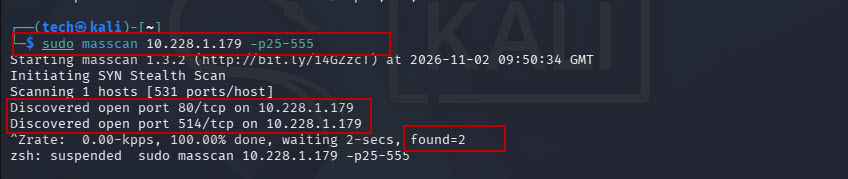
This command scans all ports from 25 to 555 on the target system.
Scan All Ports
To scan all TCP ports on a target IP address, use:
sudo masscan 10.228.1.179 -p0-65535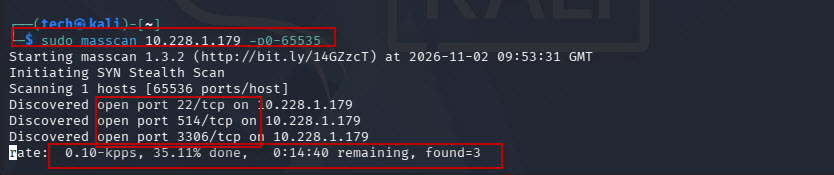
This scans the complete port range from 0 to 65535.
Increase Scanning Speed Using –rate
Masscan allows you to control the packet transmission rate using the ‘–rate’ option.
sudo masscan 10.228.1.179 -p0-65535 --rate 1000Here, ‘–rate 1000’ instructs Masscan to transmit approximately 1,000 packets per second.
You can adjust the rate according to your network capacity and scanning requirements. Avoid using extremely high rates because they can generate significant network traffic and affect the target system or network.
Save Scan Results to a File
Masscan displays scan results in the terminal by default. You can redirect the output to a text file using the ‘>’ operator.
sudo masscan 10.228.1.179 -p0-1000 > output.txt
This saves the scan results in a file named ‘output.txt’.
To view the saved results, execute:
cat output.txt
Masscan also supports different output formats, including XML, JSON, and binary. Check the help section for the available output options.
Scan Commonly Used Ports
If you want to scan frequently used ports, you can specify the ports directly instead of scanning the entire port range.
For example:
sudo masscan 10.228.1.179 -p21,22,23,25,53,80,110,443,3306,3389 --rate 1000This command scans a selected list of commonly used TCP ports.
Scan Multiple IP Addresses
Masscan also supports scanning an entire network range.
For example:
sudo masscan 10.228.1.0/24 -p80,443 --rate 1000This command scans ports 80 and 443 across the specified ‘/24’ network.
4. Pause and Resume a Masscan Scan
When scanning large networks or multiple ports, a scan may take some time to complete.
Masscan supports pausing and resuming scans.
To stop an ongoing scan, press: CTRL + C

Masscan saves the current scanning state in a configuration file named ‘paused.conf‘.

To resume the interrupted scan, execute:
sudo masscan --resume paused.confMasscan will continue scanning from the saved state.
Fix the Unknown Configuration Option Error
Sometimes, while resuming a scan, you may encounter an error similar to:
CONF: unknown config option: nocapture=servername

This can happen when the saved configuration contains an option that your installed Masscan version does not recognize.
To check the configuration file, execute:
cat paused.conf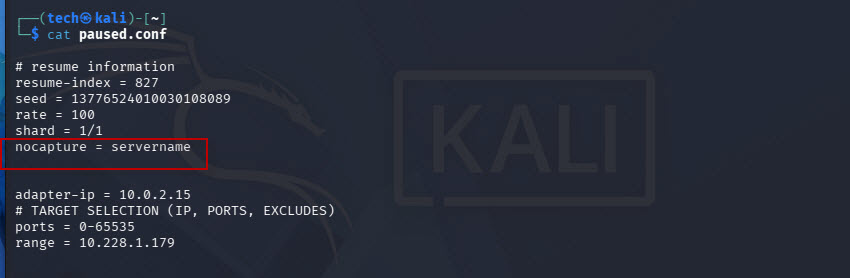
If you find the unsupported ‘nocapture=servername’ entry, open the file:
nano paused.conf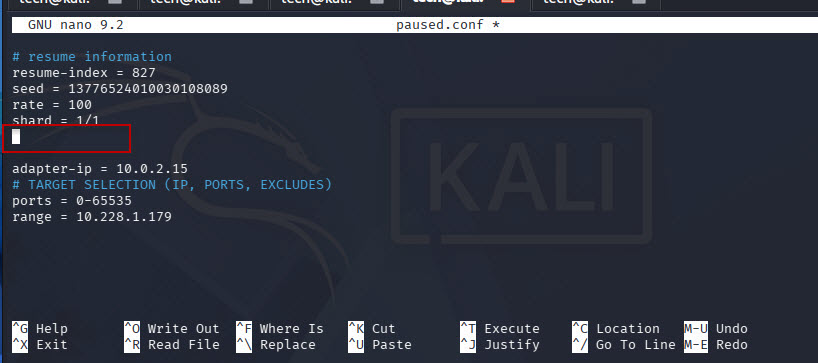
Remove that entry, save the file, and try resuming the scan again:
sudo masscan --resume paused.conf
Only remove the unsupported option after checking that it is not required by your installed version.
5. Grab Service Banner Information
Masscan also supports banner grabbing to collect basic service information from open ports.
Use the ‘–banners’ option:
sudo masscan -p22,80 10.10.10.0/24 --banners --rate 1000This command scans ports 22 and 80 across the specified network and attempts to retrieve available service banner information.
Banner grabbing is supported for several common protocols, including SSH, HTTP, FTP, SMTP, and SSL.
The information collected can help identify the services running on open ports.
Conclusion
Masscan is a powerful and fast port scanning tool available in Kali Linux. It is particularly useful for scanning large network ranges and identifying open ports quickly.
In this tutorial, we covered commonly used Masscan commands, including single-port scanning, multiple-port scanning, full port scanning, scan speed configuration, saving results, pausing and resuming scans, and banner grabbing.
You can explore additional options using ‘masscan –help’ or refer to the official GitHub repository to learn more about its advanced features.