
In this tutorial, you will learn how to create a new user in Ubuntu 26.04 LTS Desktop and add the user to the sudo group so that the account can execute administrative commands.
You need administrative privileges to create a user and add it to the sudo group. In this example, we are logged in as the root user.
1. Create a New User
Open the Terminal and run the following command:
adduser testuser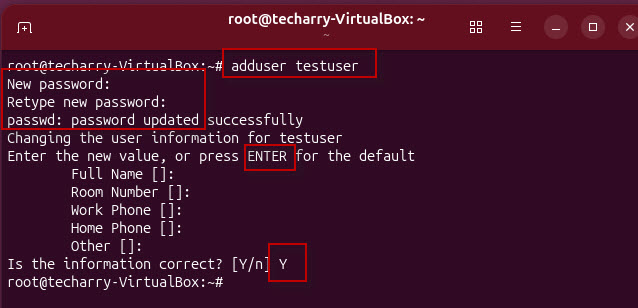
Press Enter. Ubuntu will ask you to set a password:
New password:
Retype new password:
Enter the password for the new user.
After the password is updated, Ubuntu will ask for additional information such as the user’s full name, room number, phone number, and other details.
If you do not want to provide these details, simply press Enter for each field.
At the end, Ubuntu will display the entered information and ask:
Is the information correct? [Y/n]
Type Y and press Enter.
The testuser account is now created.
2. Check the User’s Groups
To check which groups have been assigned to the new user, run:
groups testuser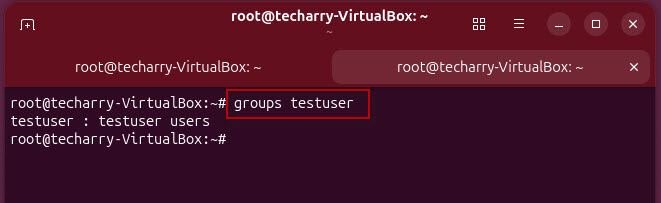
The output will show the groups associated with testuser.
At this stage, the sudo group will not be listed because we have not added the user to it yet.
3. Test sudo Access
Switch to the newly created user:
su - testuser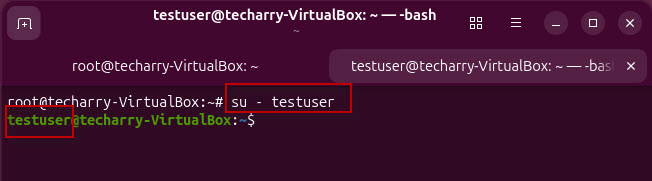
You should now be at the testuser command prompt.
Try running a command with sudo:
sudo whoami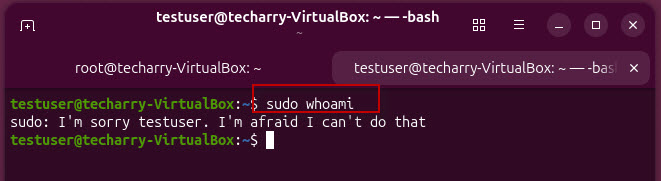
Because testuser has not yet been added to the sudo group, the command will fail or report that the user is not allowed to run sudo commands.
4. Add the User to the sudo Group
Switch back to the root account and run:
usermod -aG sudo testuser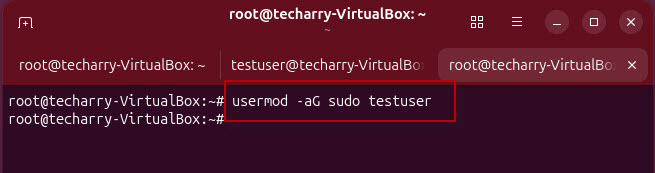
Here:
- usermod modifies an existing user account.
- -a appends the user to a group without removing existing group memberships.
- -G sudo adds the user to the sudo group.
The user is now a member of the sudo group.
5. Verify the sudo Group
Check the user’s groups again:
groups testuser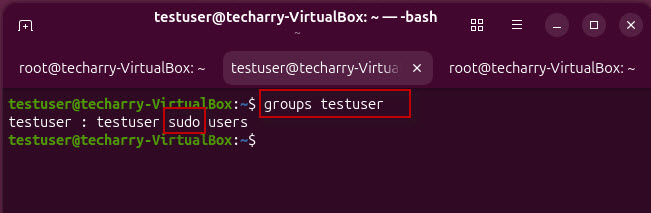
You should now see sudo in the list of groups.
For the group membership to be available in a new login session, log out and log back in as testuser, or start a new session.
6. Test sudo Access Again
Log in as testuser and run:
sudo whoami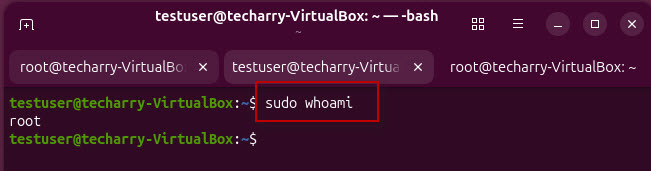
Ubuntu may ask for the testuser password. Enter it when prompted.
If sudo access is configured correctly, the command will return: root
This confirms that testuser can execute commands with administrative privileges.
For example, you can now run administrative commands such as:
sudo apt-get update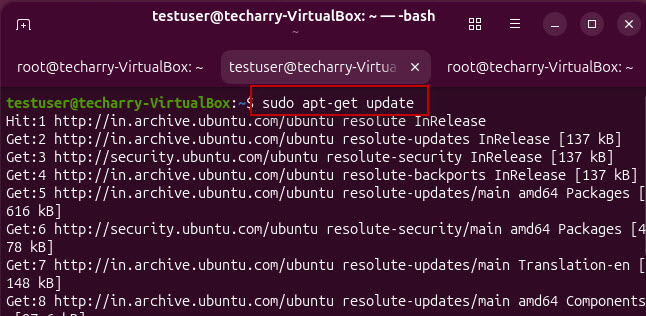
Conclusion
You have successfully created a new user in Ubuntu 26.04 LTS Desktop and added the account to the sudo group. The new user can now perform administrative tasks by using sudo without needing to log in directly as root.