

Ubuntu follows a security model where normal users do not have permission to perform administrative or system-level tasks by default. To execute commands that require elevated privileges, a user must have permission to use the sudo command.
In this tutorial, you will learn how to add a normal user to the sudo group in Ubuntu . Once added, the user will be able to execute administrative commands using sudo.
For this demonstration, Ubuntu Desktop is installed as a virtual machine on VirtualBox. We have two users available on the system:
- siem – A normal user without sudo privileges.
- root – A privileged administrative user.
Let’s begin by checking what happens when a normal user tries to execute a command with sudo privileges.
Step 1: Check Sudo Access for the Normal User
First, log in to Ubuntu using the normal user account named siem.
Open the Terminal and run the following command:
sudo su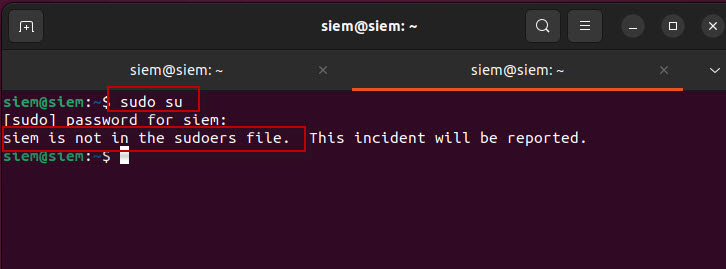
The system will ask for the password of the siem user : Enter the password and press Enter.
Since the siem user does not currently have sudo privileges, you may receive an error similar to:
siem is not in the sudoers file.
This means that the siem user has not been granted permission to execute commands with administrative privileges.
Step 2: Check the Current Groups of the User
You can check which groups the currently logged-in user belongs to by running:
groups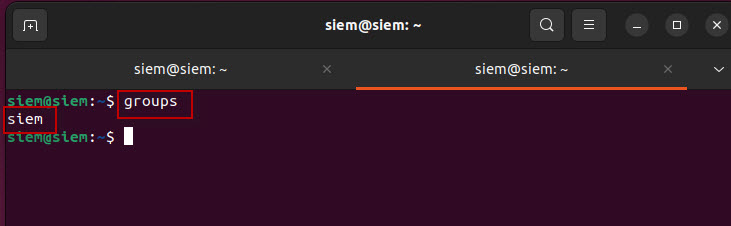
The output may look similar to: siem
This indicates that the user belongs only to its default group and is not a member of the sudo group.
Because the sudo group is missing, the user cannot execute administrative commands using sudo.
Step 3: Log In Using the Root User
To grant sudo privileges to the normal user, log out from the siem account and log in using the root user.
After logging in as root, open the Terminal.
Before adding the user to the sudo group, you can verify the existing groups assigned to the siem user.
Run:
groups siem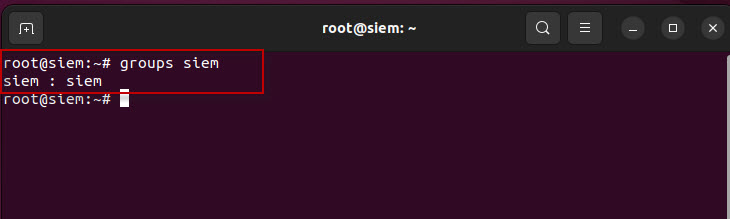
As you can see, the sudo group is not currently listed.
Step 4: Add the User to the Sudo Group
To grant sudo privileges to the siem user, run the following command as root:
usermod -aG sudo siem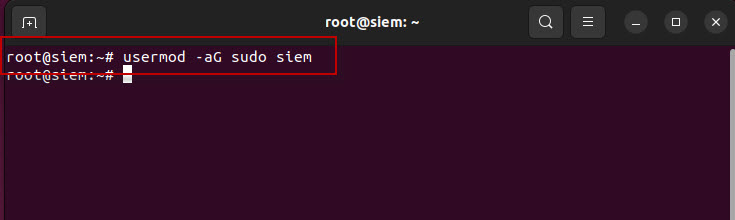
Press Enter to execute the command.
If the command completes successfully without displaying an error, the user has been added to the sudo group.
Let’s understand each part of the above command:
- usermod – Command used to modify an existing user account.
- -a – Appends the user to an additional group.
- -G – Specifies the supplementary group.
- sudo – The group being assigned to the user.
- siem – The username being added to the sudo group.
The -a option is important because it appends the new group without removing the user from existing groups.
Alternative Command to Add a User to the Sudo Group
You can also use the following command to add a user to the sudo group:
adduser siem sudo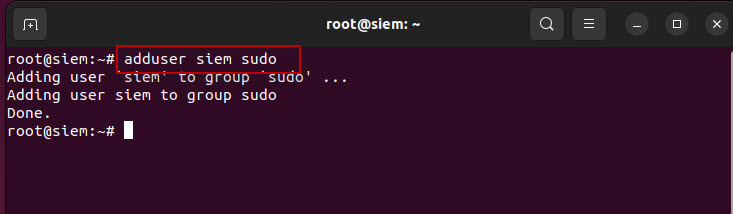
Here:
- adduser – Command used to manage users and groups.
- siem – The username.
- sudo – The group being added to the user account.
Both commands can be used to grant sudo privileges to an existing Ubuntu user.
Step 5: Verify That the User Was Added to the Sudo Group
After adding the user, verify the group membership by running:
groups siem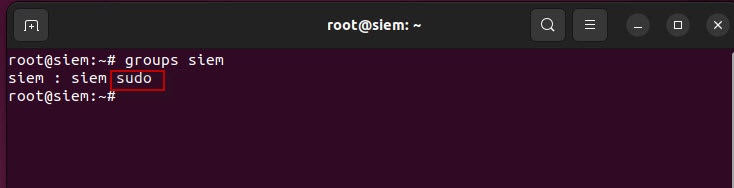
The output should now show:
siem : siem sudo
The presence of the sudo group confirms that the siem user has been added successfully.
Step 6: Log In Again With the Normal User
After adding the user to the sudo group, log out from the current session.
Then log back in using the normal siem user account.
Note: The user must start a new login session for the updated group membership to take effect. If required, you can also restart the Ubuntu system.
Open the Terminal and run:
sudo su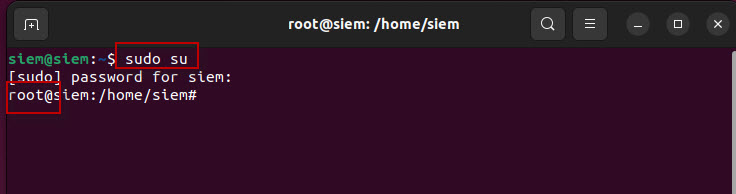
Enter the password of the siem user and press Enter.
If everything is configured correctly, you will now be switched to the root shell : root@siem:/home/siem#
This confirms that the siem user now has sudo administrative privileges.
In this tutorial, you learned how to add a normal user to the sudo group in Ubuntu. Granting sudo access allows a normal user to perform administrative tasks without permanently logging in as the root user. This is the recommended method for managing administrative privileges on Ubuntu systems.
By following these steps, you can easily grant sudo privileges to existing or newly created users in Ubuntu systems.









This Post Has One Comment
Comments are closed.