
By default, the root user is locked for direct login on Ubuntu. Instead, Ubuntu provides the first user account with sudo privileges so administrative tasks can be performed without logging in as root.
In this guide, you will learn how to enable the root user on a freshly installed Ubuntu 26.04 Desktop VM running in VirtualBox. The guide covers both:
- Enabling root access from the Terminal/Console
- Enabling root login from the Graphical User Interface (GUI)
Note : Direct root login, especially through the GUI, is not recommended for normal daily use. The root account has unrestricted access to the system. Enable it only in a test/lab environment or when you specifically need it.
Enabling root access from the Terminal/Console
Step 1: Check the Current User
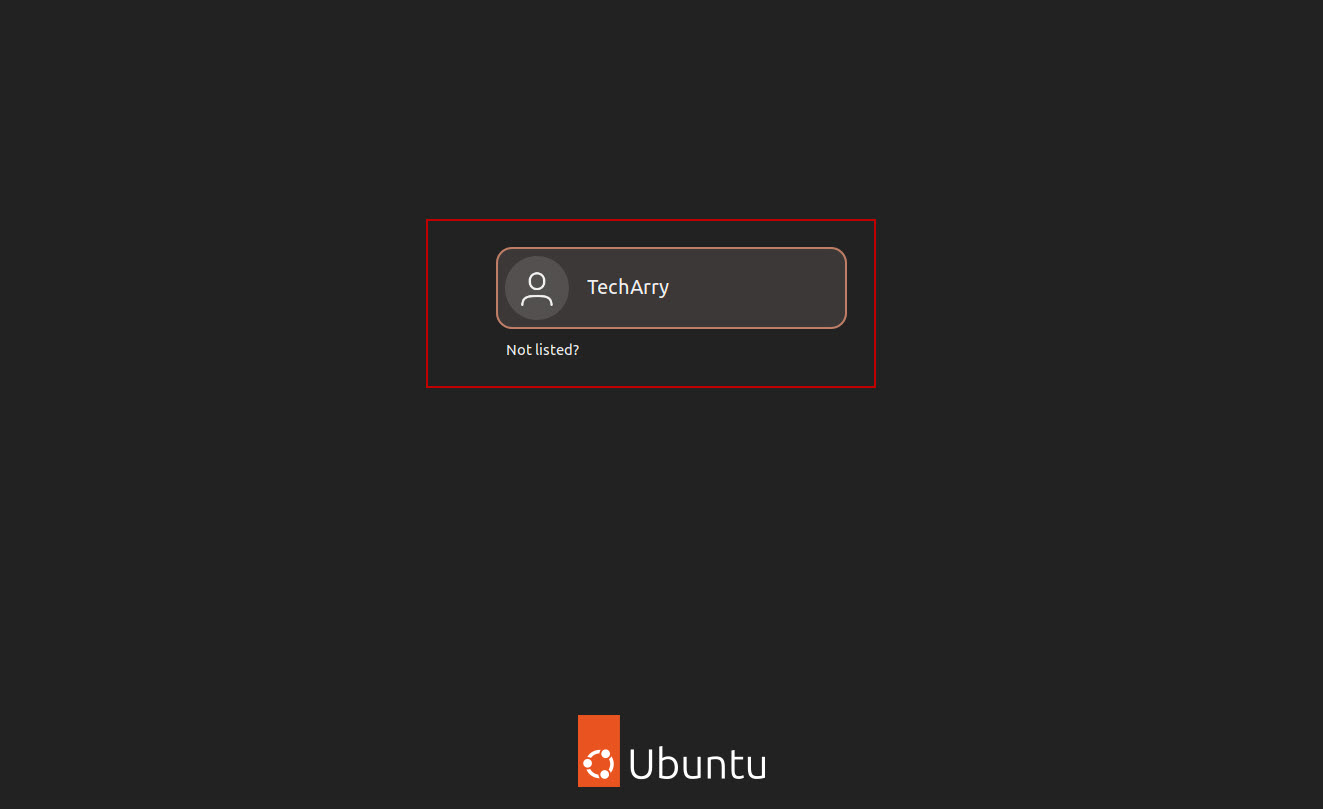
First, log in to Ubuntu using your normal user account.
Open Terminal and run:
whoami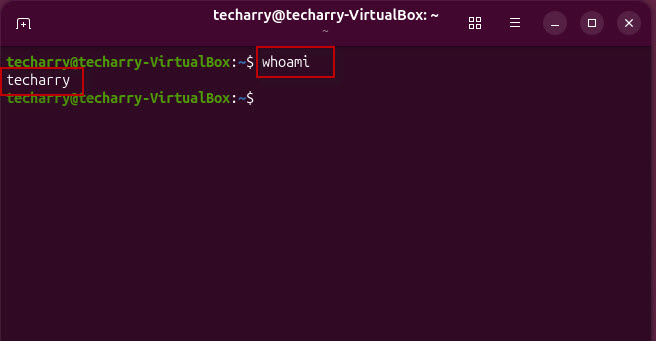
Output : techarry
This confirms that you are currently logged in with the techarry user.
Step 2: Set a Password for the Root User
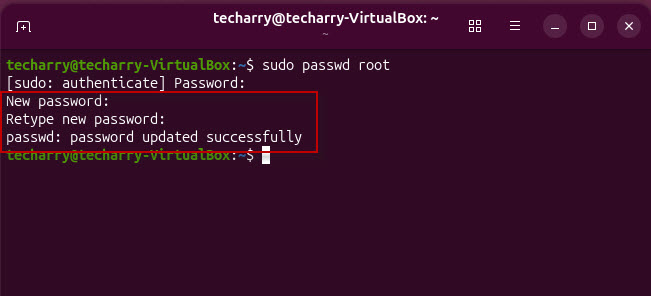
Ubuntu normally has the root account locked. To set a password for the root account, run:
sudo passwd root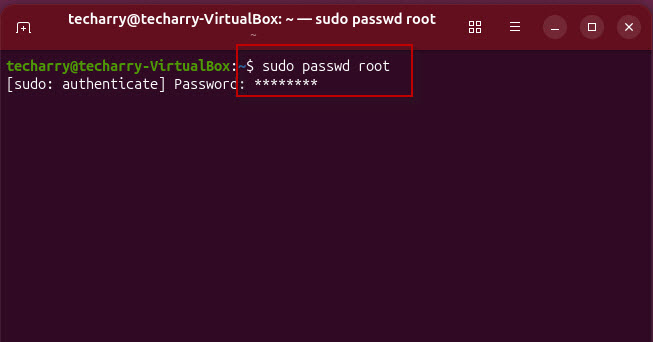
Here:
- sudo : Executes the command with administrative privileges.
- passwd : Changes or sets a user’s password.
- root : Specifies that the password is being set for the root user.
First, Ubuntu will ask for the password of your currently logged-in user.
Enter the password for techarry and press Enter.
You will then be asked to enter a new password for the root user:
New password:
Retype new password:
Enter a strong password and confirm it.
If the password does not meet the password policy configured on your Ubuntu installation, you may receive a password-quality error as seen in below screenshots :
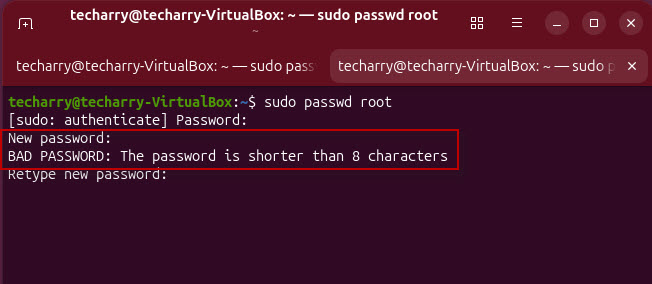
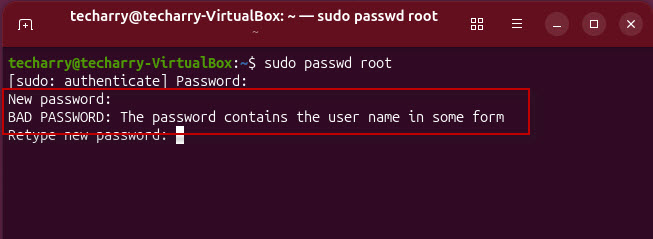
Use a sufficiently long and strong password containing a combination of letters, numbers, and special characters.
If successful, you will see a message similar to:
passwd: password updated successfully
The root account now has a password and can be accessed from the terminal.
Step 3: Switch to the Root User
To test the root account, run:
su -Enter the root password that you configured in the previous step.
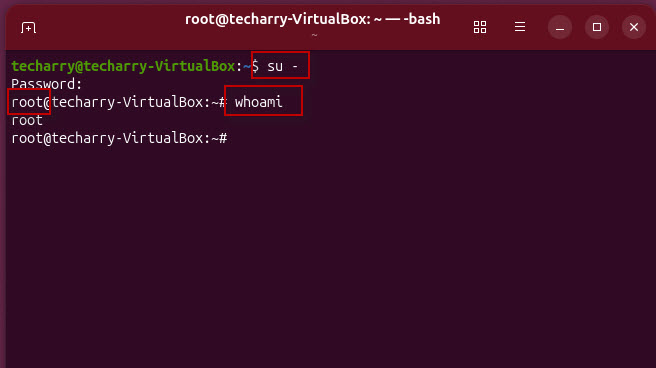
Now verify the current user:
whoamiThe output should be: root
You are now operating inside a root login shell with full administrative privileges.
Return to the Normal User
To leave the root shell, run:
exit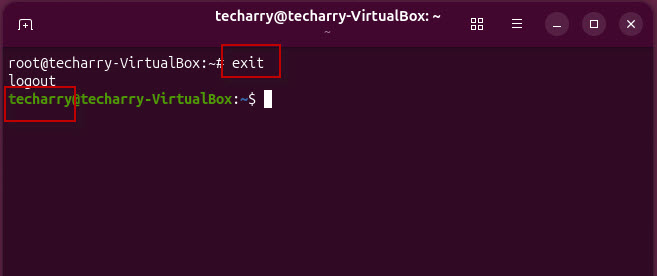
You should see: logout
You will then return to your normal user account.
At this point, the root user has been enabled for terminal/console login.
Enable Root Login from the Ubuntu GUI
Setting a root password does not automatically allow the root account to log in through the Ubuntu graphical login screen.
Ubuntu’s GNOME Display Manager (GDM) normally prevents direct root GUI login. If you specifically need root GUI login in your VirtualBox lab environment, additional configuration is required.
Step 4: Modify the GDM Password Authentication Configuration
Open the following file:
sudo nano /etc/pam.d/gdm-password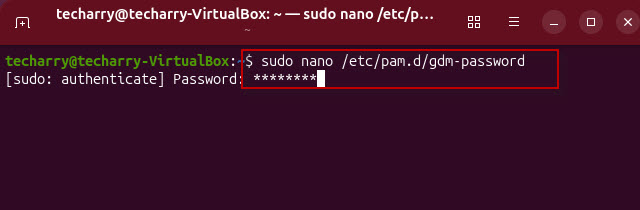
Look for the following line:
auth required pam_succeed_if.so user != root quiet_success
Comment out the line by adding # at the beginning:
#auth required pam_succeed_if.so user != root quiet_success
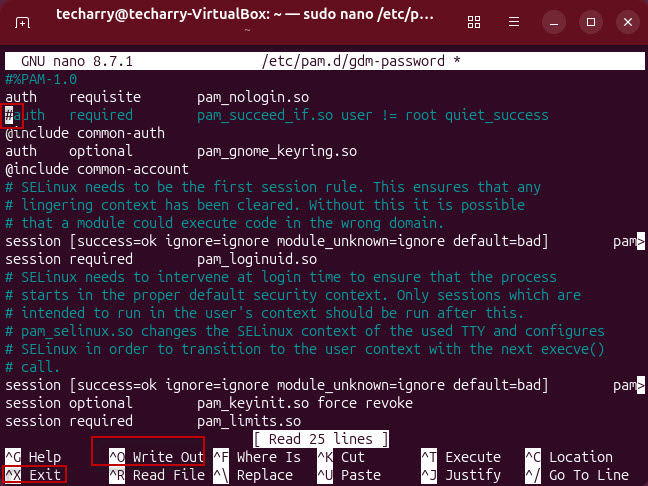
Save the file:
- Press Ctrl + O
- Press Enter
- Press Ctrl + X
Step 5: Modify the GDM Configuration
Now open the GDM configuration file:
sudo nano /etc/gdm3/custom.conf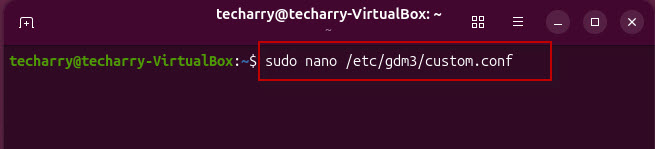
Find the [security] section.
Add: AllowRoot=true
For example:

[security]
AllowRoot=true
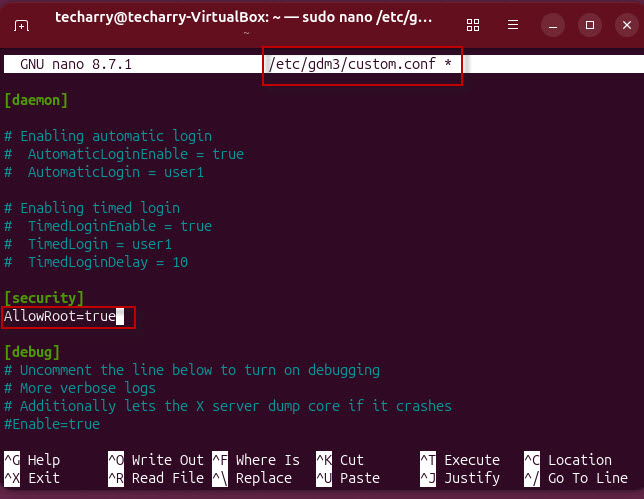
Save the file:
- Press Ctrl + O
- Press Enter
- Press Ctrl + X
Step 6: Log in as Root from the GUI
Log out from your current Ubuntu desktop session.
At the Ubuntu login screen, select: Not listed?
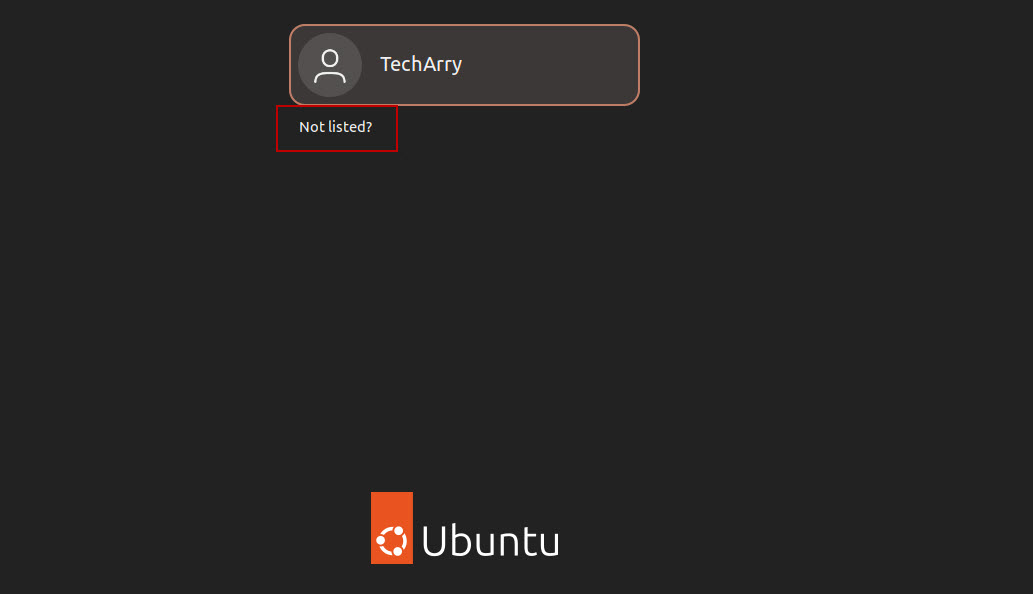
Enter: root
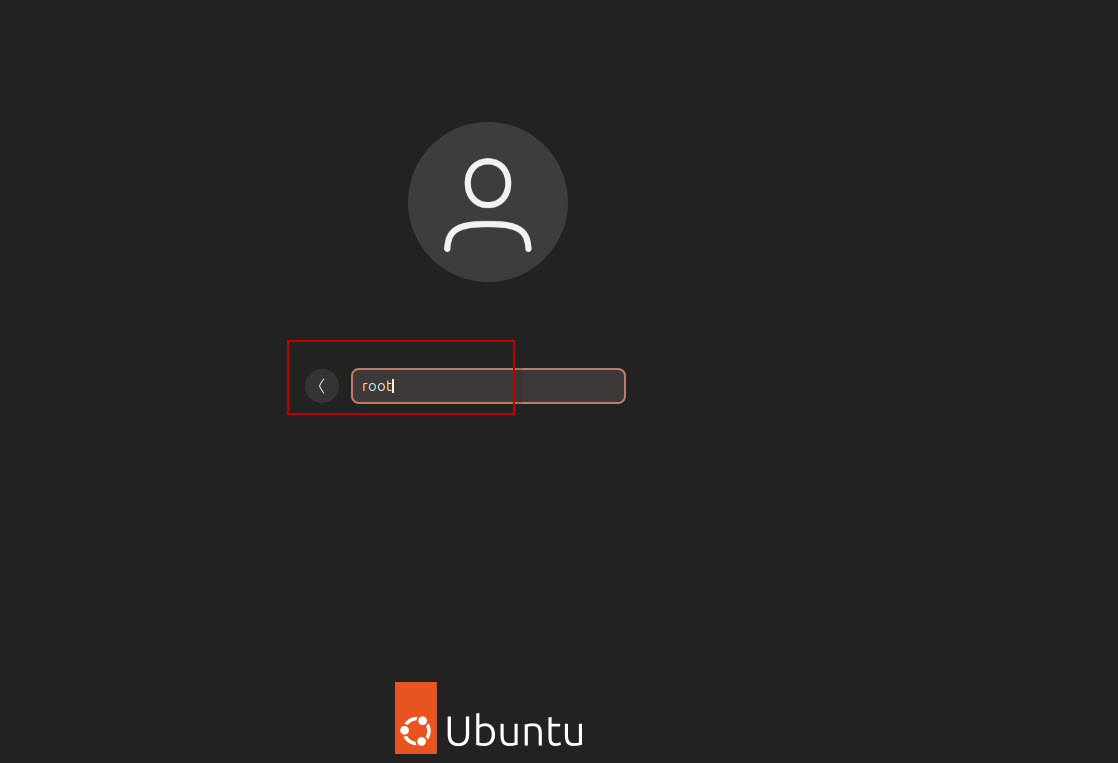
Press Enter.
When prompted for the password, enter the root password that you configured earlier and press enter.
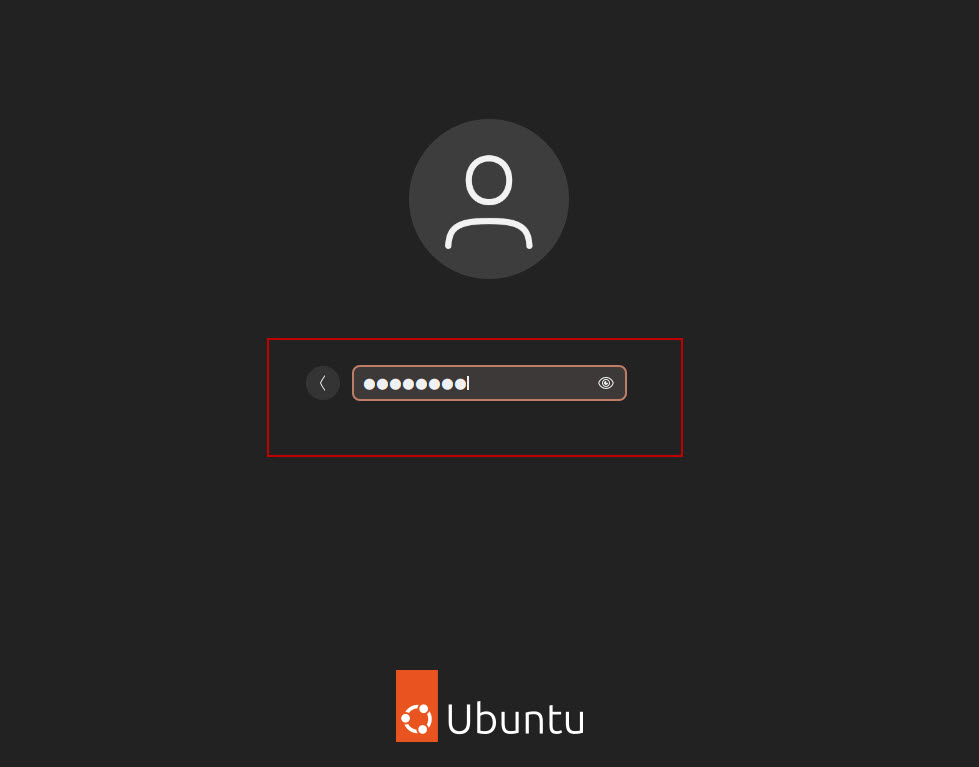
If the configuration has been applied successfully, Ubuntu should allow the root account to log in through the graphical desktop.
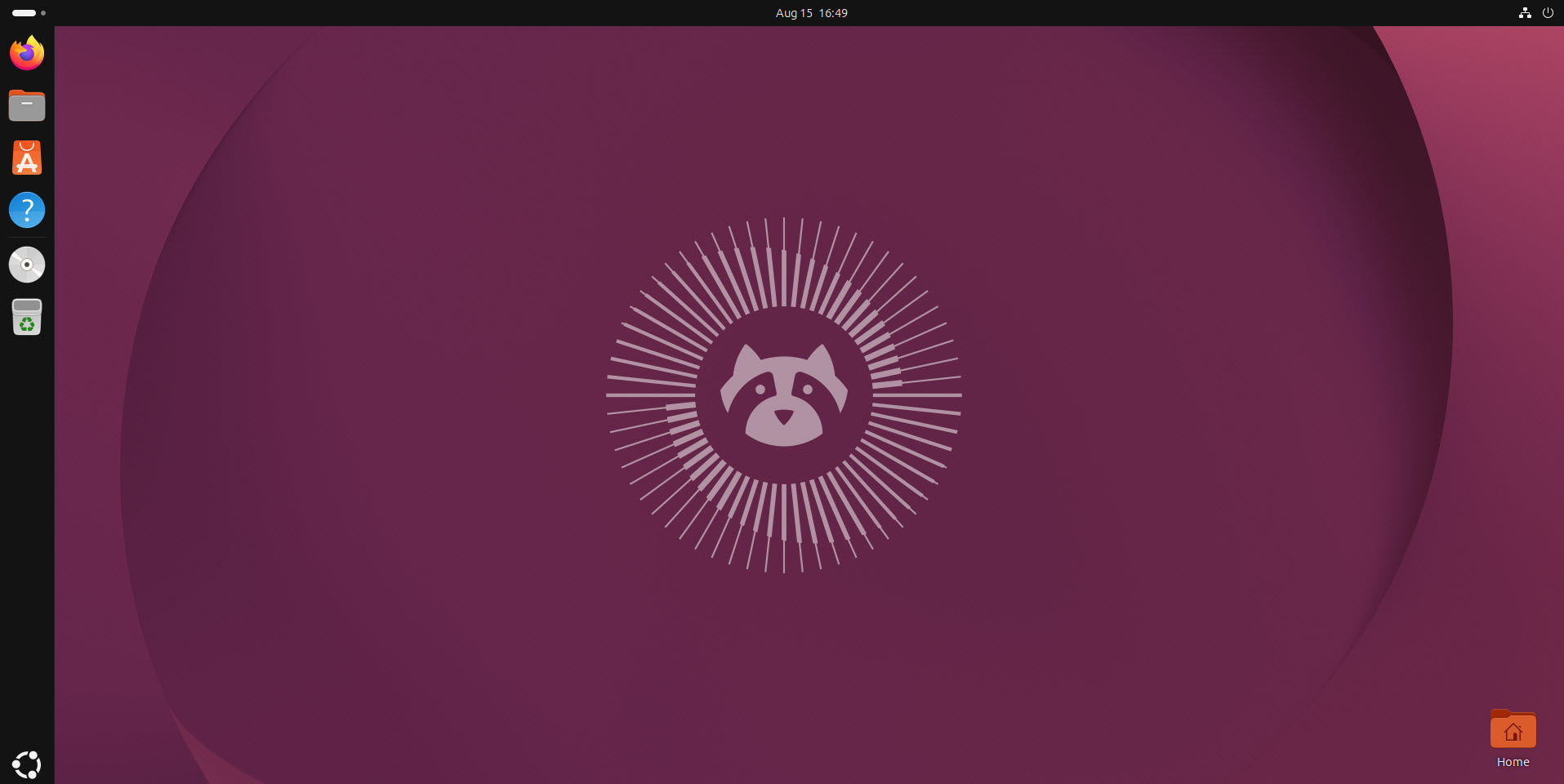
Step 7: Verify the Root GUI Login
After logging in, open Terminal and run:
whoami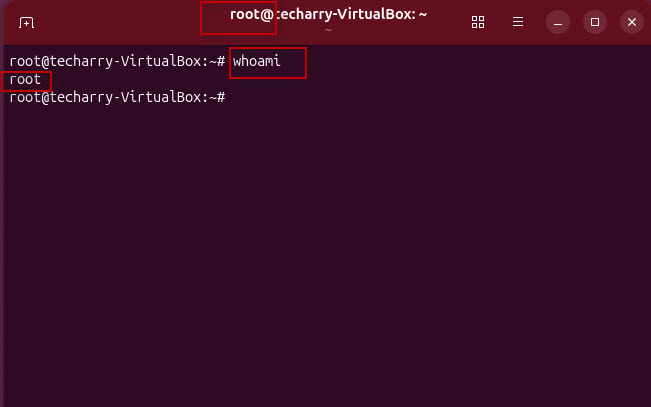
The output should be: root
This confirms that you are logged into the Ubuntu graphical desktop as the root user.
Remember that root has unrestricted privileges. For normal Ubuntu administration, it is safer to continue using your regular account with sudo rather than keeping direct GUI root login enabled.
If you no longer need GUI root login, revert the changes made to /etc/pam.d/gdm-password and /etc/gdm3/custom.conf and keep the root account locked or use sudo for administrative operations.






This Post Has 2 Comments
Comments are closed.