Learn how to remove or delete an administrator or standard user account in Windows 11 using Command Prompt, Control Panel, Settings, and Computer Management.
Deleting unused user accounts helps keep your Windows 11 system clean and secure. Whether you want to remove an old administrator account or a normal user account, Windows provides multiple ways to do it.
In this tutorial, you will learn four easy methods to delete an administrator or standard user account in Windows 11.
Note: You must be logged in with another Administrator account before deleting any administrator user. You cannot delete the account that is currently signed in.
Prerequisites
Before deleting a user account, ensure that:
- You are logged in using an Administrator account.
- The account you want to delete is not currently logged in.
- Backup any important files if required, as deleting an account may permanently remove its data.
Method 1: Delete an Administrator User Using Command Prompt
This is the fastest method if you know the username.
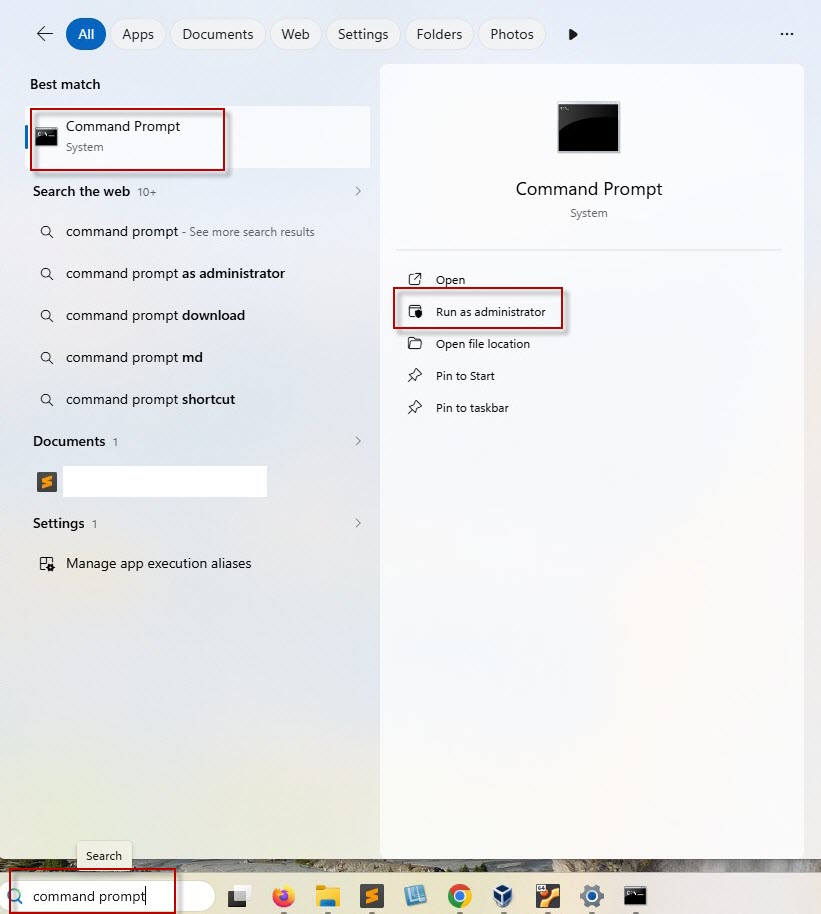
Step 1: Open Command Prompt as Administrator
- Click Start.
- Type Command Prompt.
- Select Run as administrator.
Step 2: View All User Accounts
Run the following command: net user
C:\Windows\System32>net user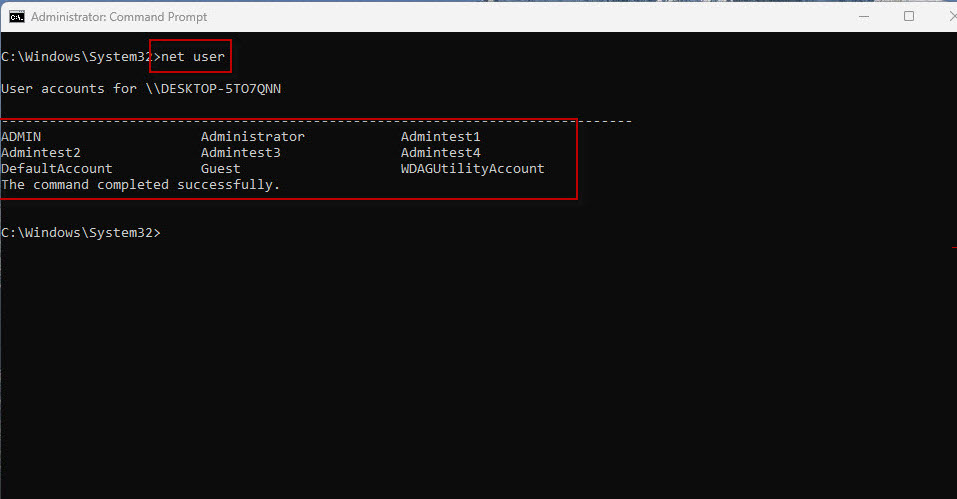
This displays all user accounts available on the computer.
For this tutorial, we have created several test administrator accounts such as Admintest1, Admintest2, etc.
Related Tutorial: If you haven’t created an administrator account yet, read our guide:https://techarry.com/how-to-create-a-new-administrator-user-in-windows-11/
Step 3: Delete the User Account
Use the following syntax: net user <username> /delete
C:\Windows\System32>net user Admintest1 /delete
If the command succeeds, Windows displays: The command completed successfully.
Step 4: Verify the Deletion
Now run:
C:\Windows\System32>net user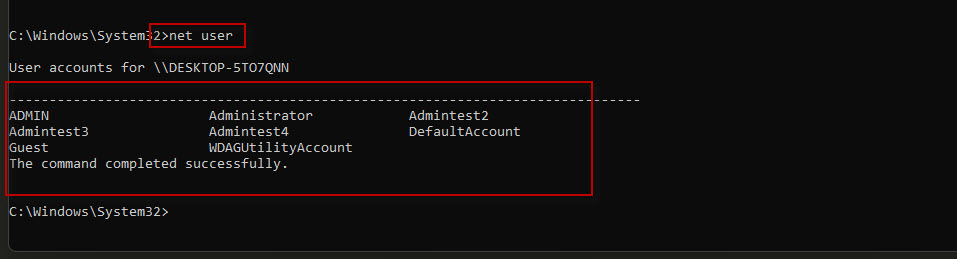
You will notice that Admintest1 no longer appears in the user list.
Method 2: Delete an Administrator User Using Control Panel
If you prefer a graphical interface, Control Panel makes deleting users simple.
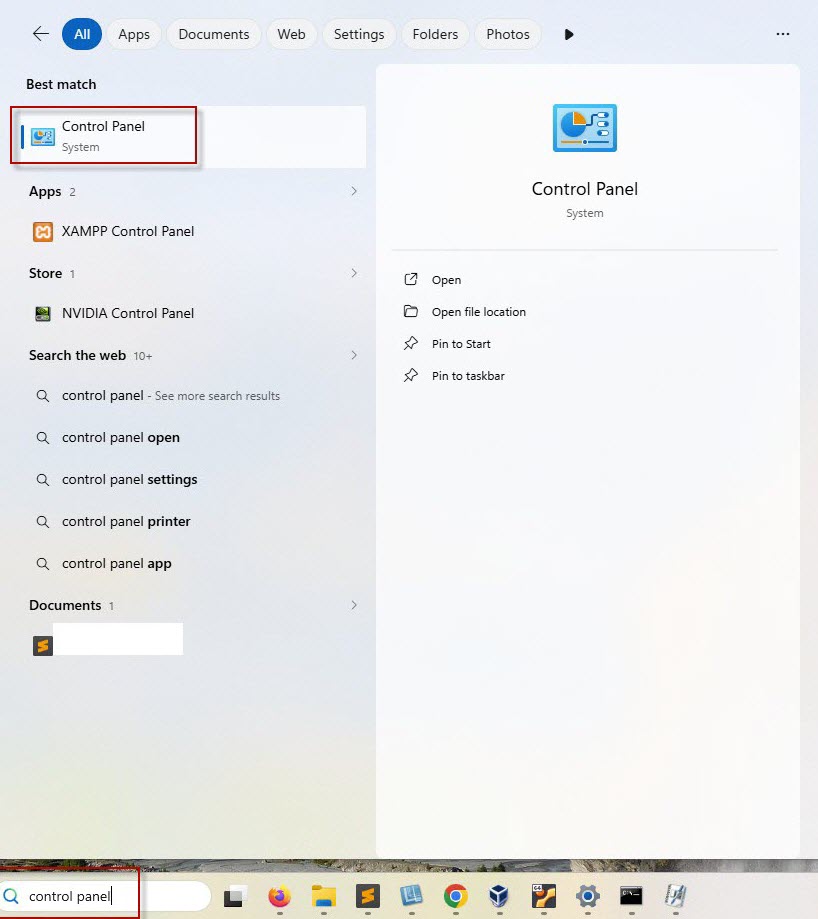
Step 1: Open Control Panel
- Type Control Panel in Windows Search.
- Open Control Panel.
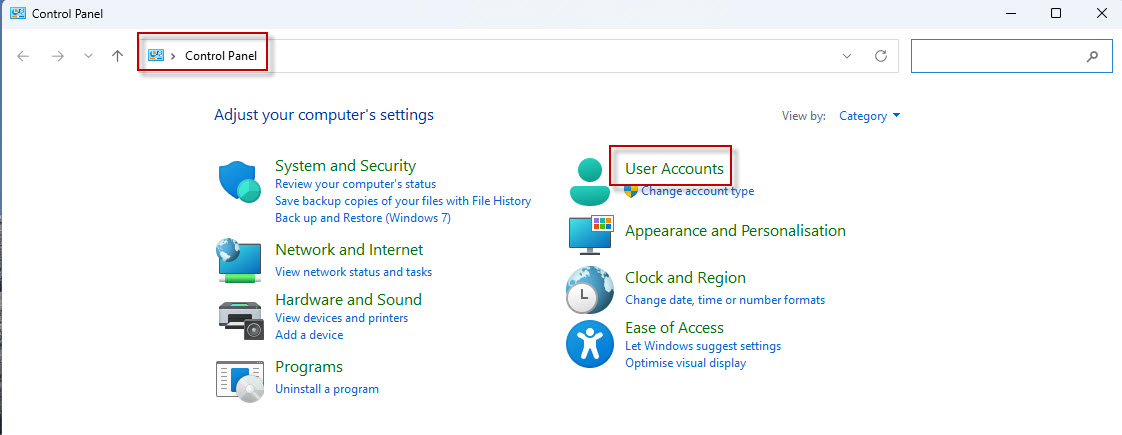
Step 2: Open User Accounts
Click: User Accounts
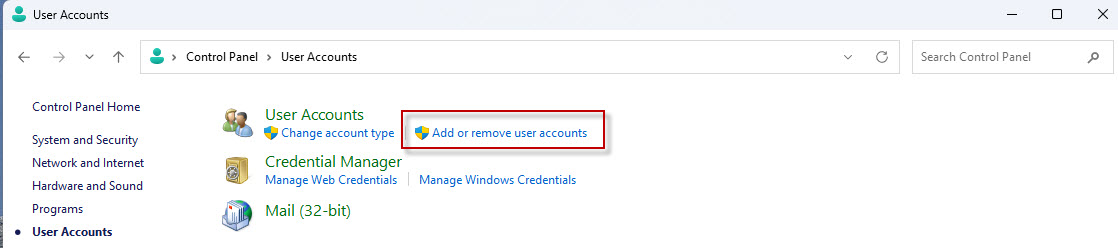
Step 3: Manage User Accounts
Click: Add or remove user accounts
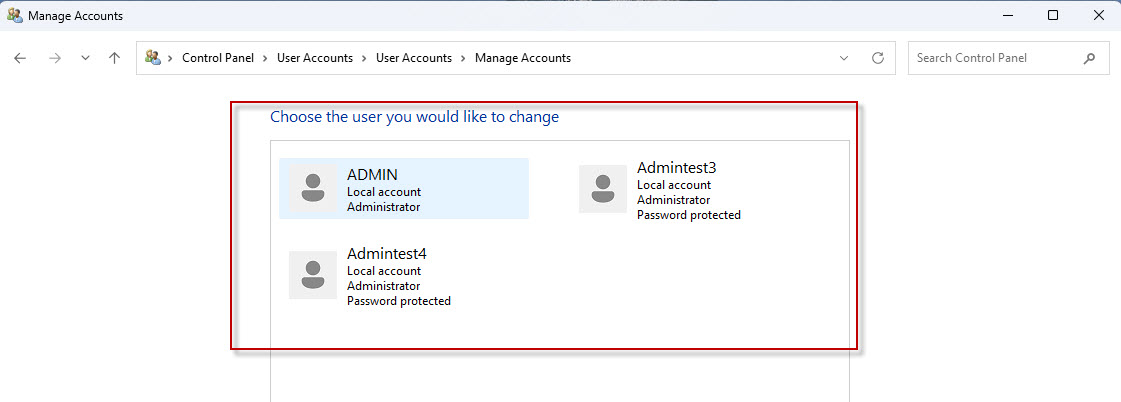
Windows displays all available user accounts.
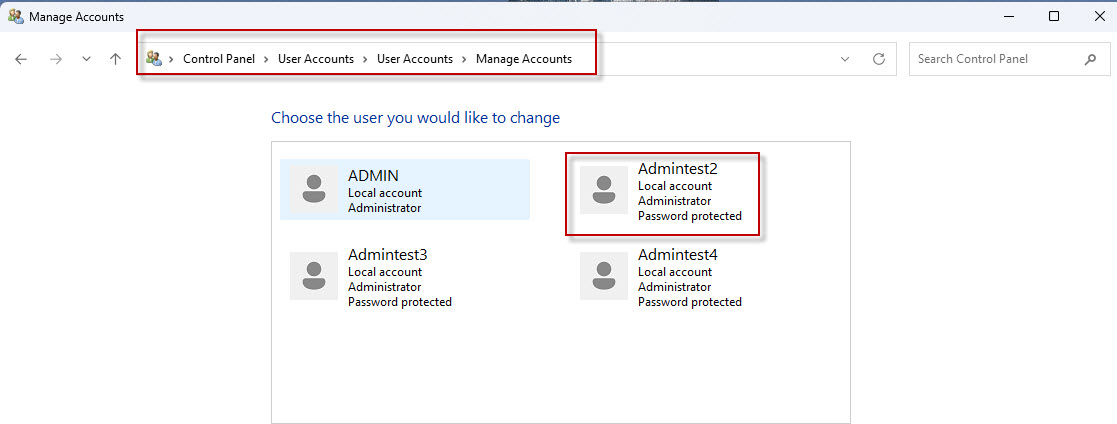
Select Admintest2 (or the account you wish to remove).
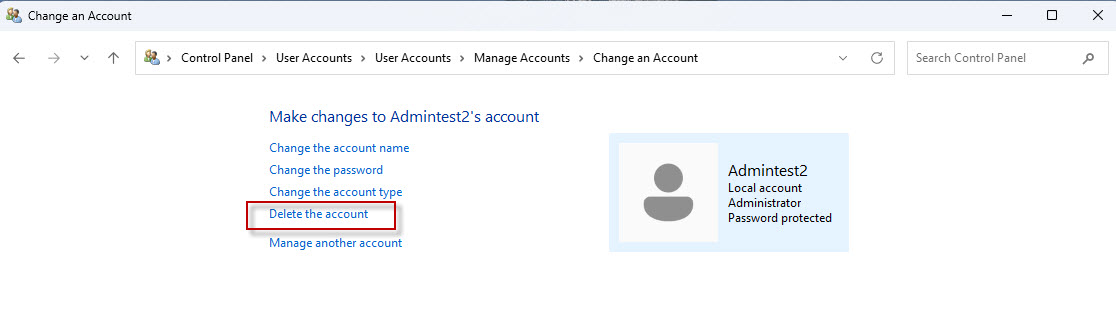
Step 4: Delete the Account
Click: Delete the account
Step 5: Choose What to Do With User Files
Windows asks whether you want to keep the user’s files.
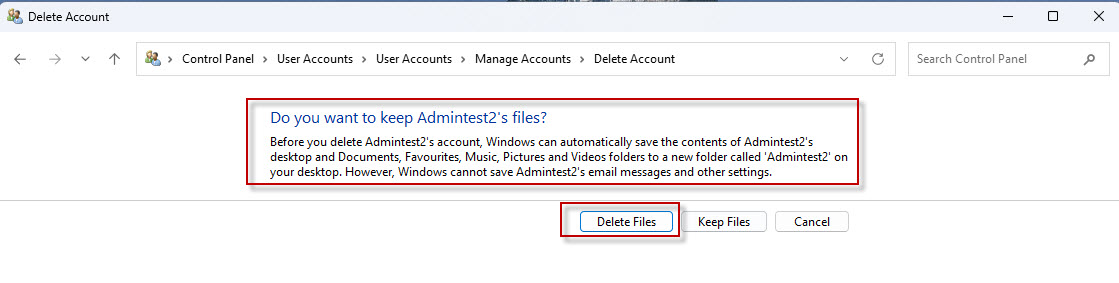
Click: Delete Files
if you do not need them.
Step 6: Confirm Deletion
Click: Delete Account

The administrator account is removed and no longer appears in the user list.
Method 3: Delete an Administrator User Using the Settings App
The Settings app is the recommended method in Windows 11.
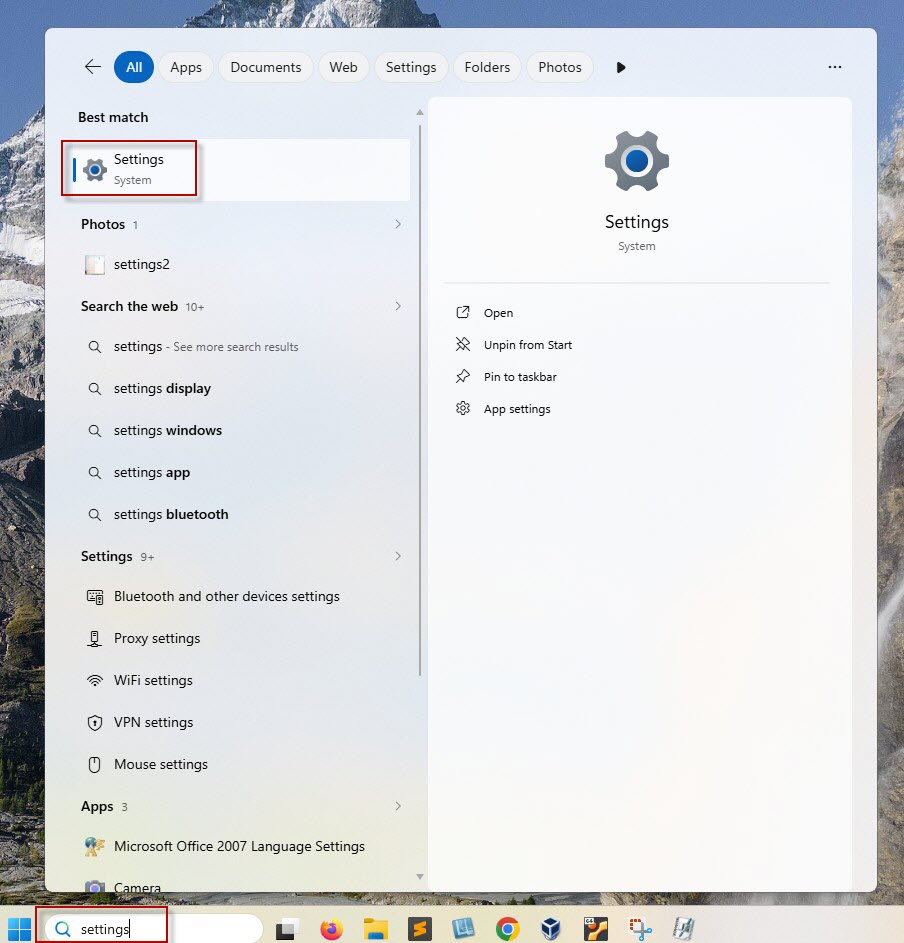
Step 1: Open Settings
Open Settings using either method:
- Search for Settings in Windows Search
- Press (Windows + I) for shortcut
Step 2: Navigate to User Accounts
Go to: Accounts → Other users
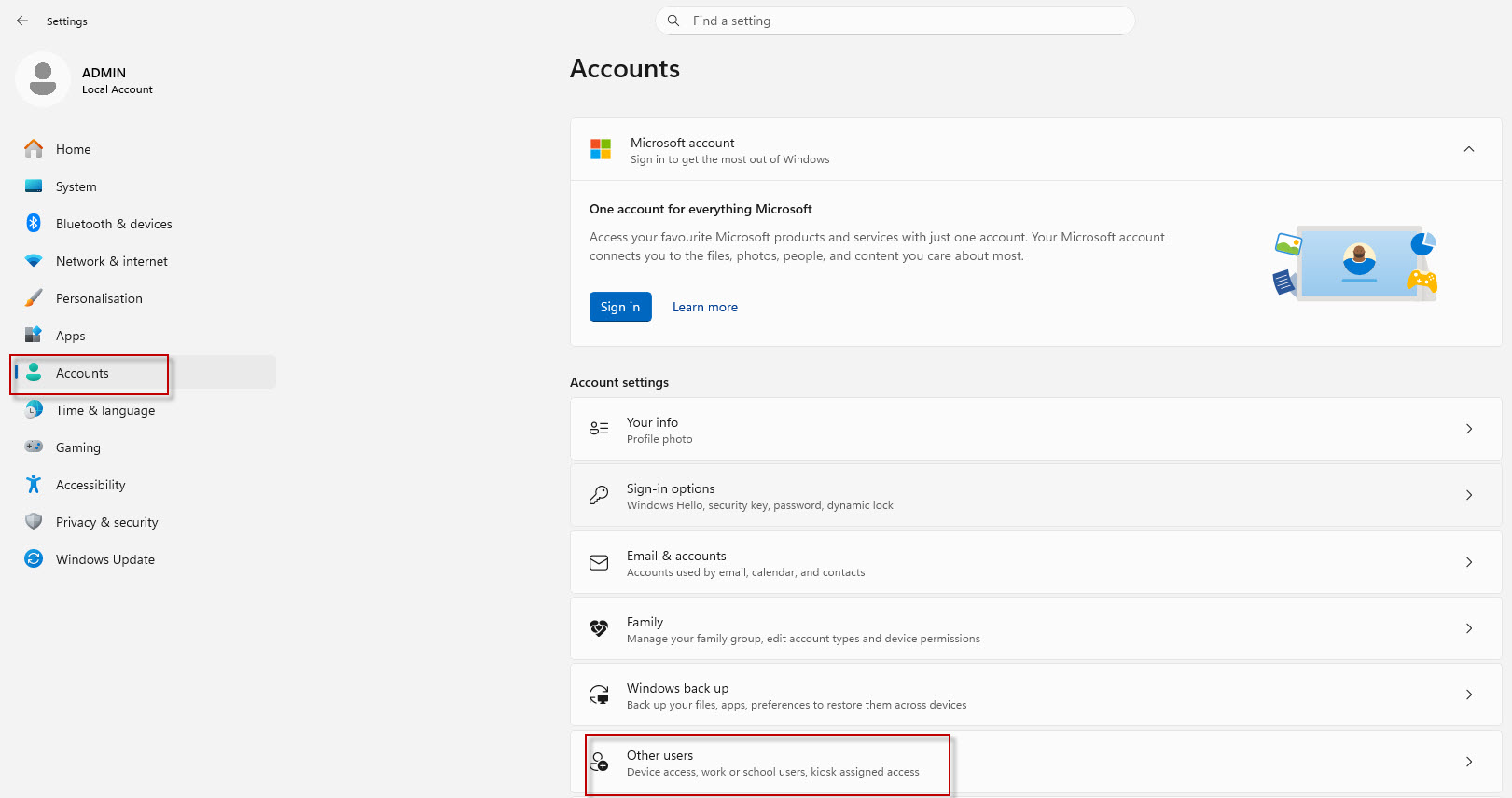
Step 3: Remove the User
Locate the account you want to remove (for example Admintest3).
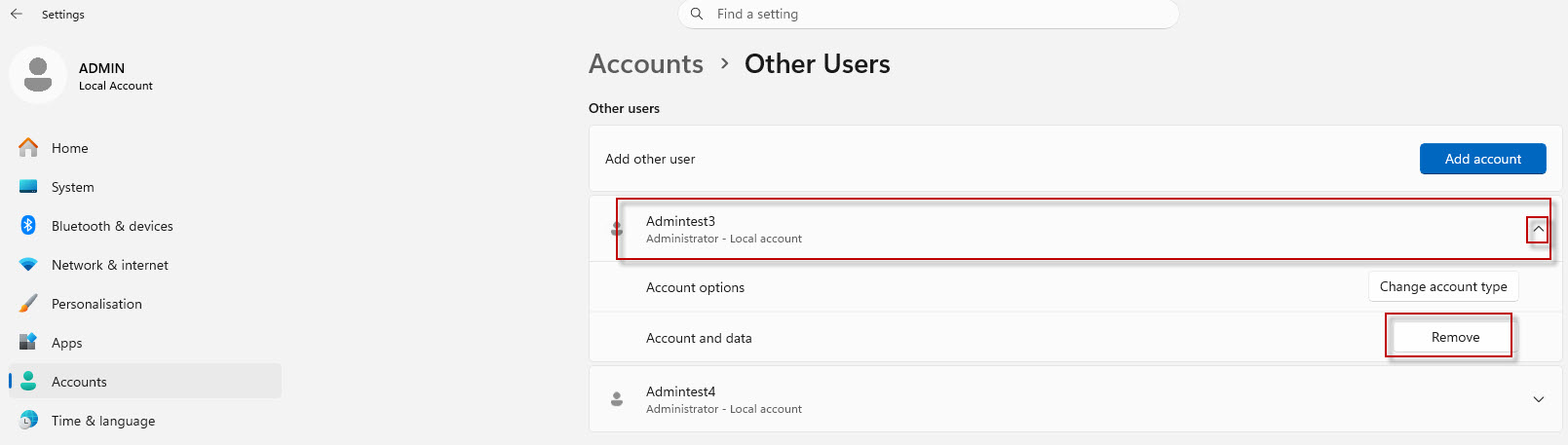
Click the account to expand it.
Click: Remove
Step 4: Confirm Deletion
Windows displays the confirmation message: Delete account and data
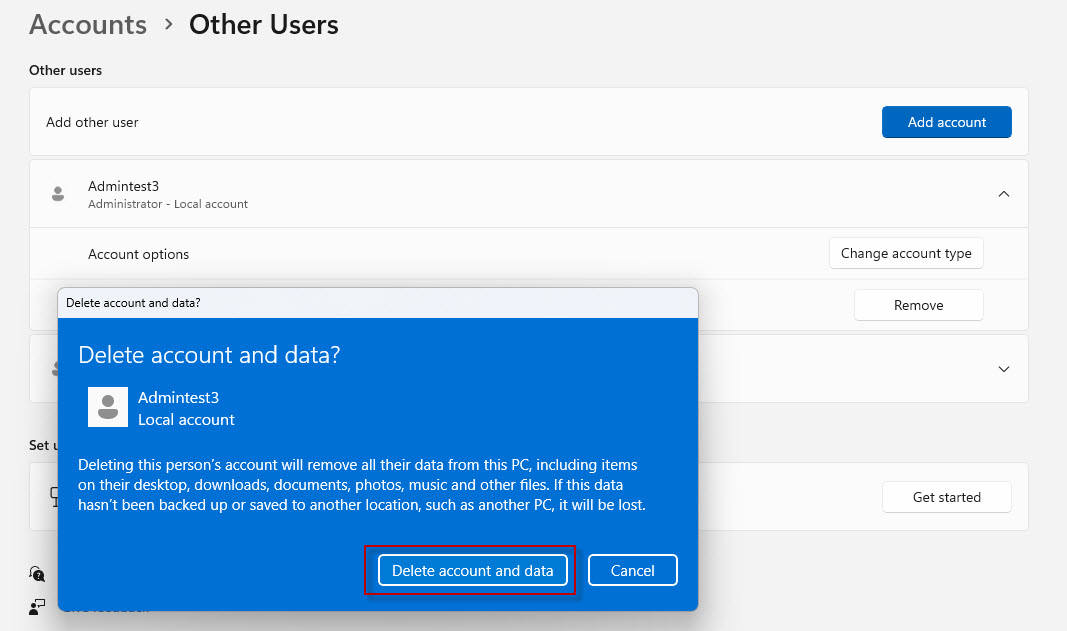
Click: Delete account and data
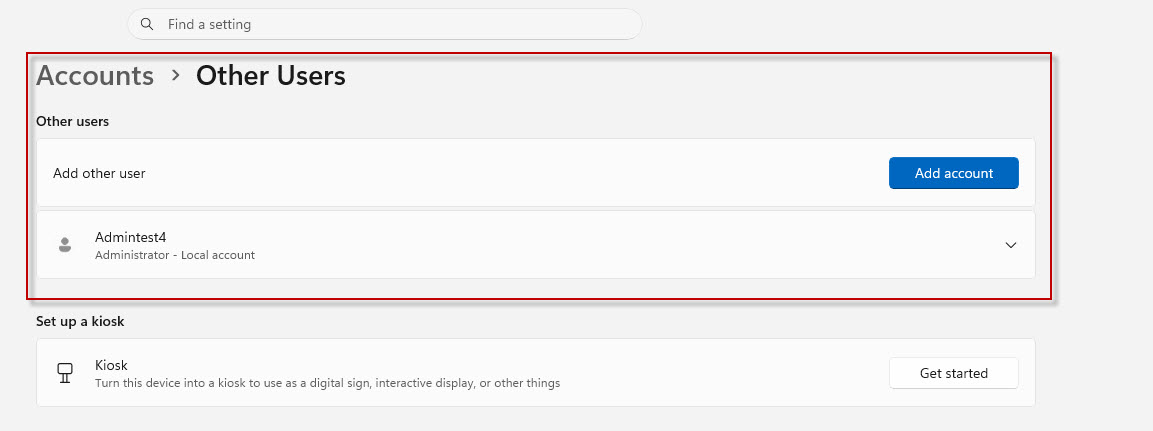
The selected administrator account will be permanently removed.
Method 4: Delete an Administrator User Using Computer Management
Computer Management provides another easy way to remove local users.
Step 1: Open Computer Management
Type: Computer Management
in Windows Search and open it.
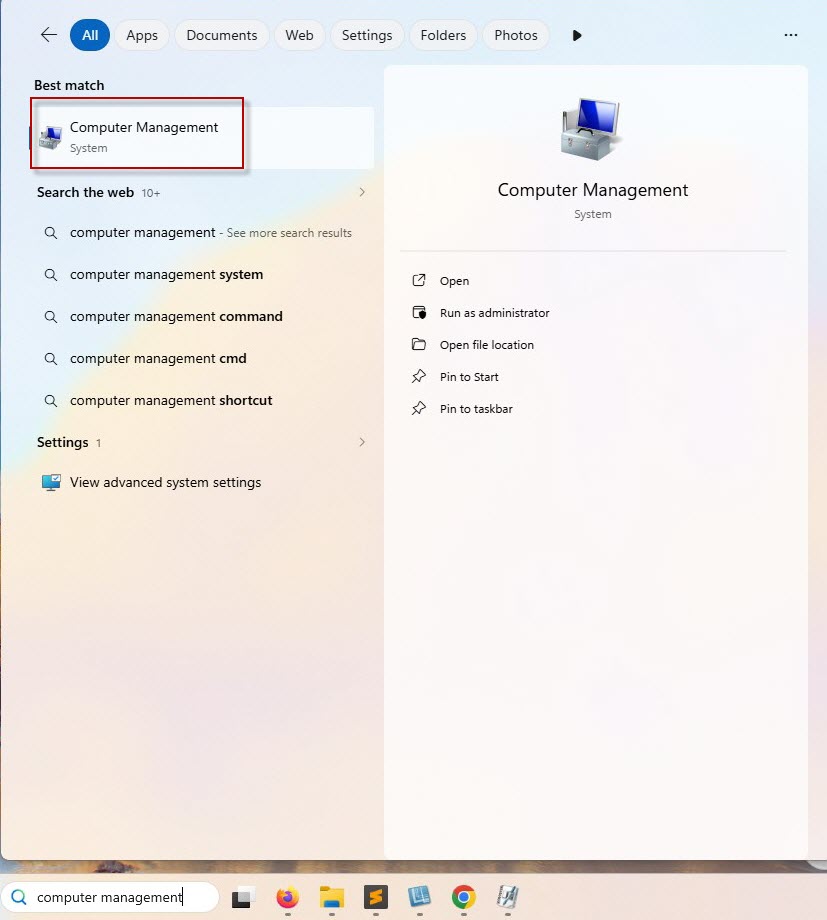
Step 2: Open Local Users
Navigate to: System Tools > Local Users and Groups > Users
All local user accounts will be displayed.
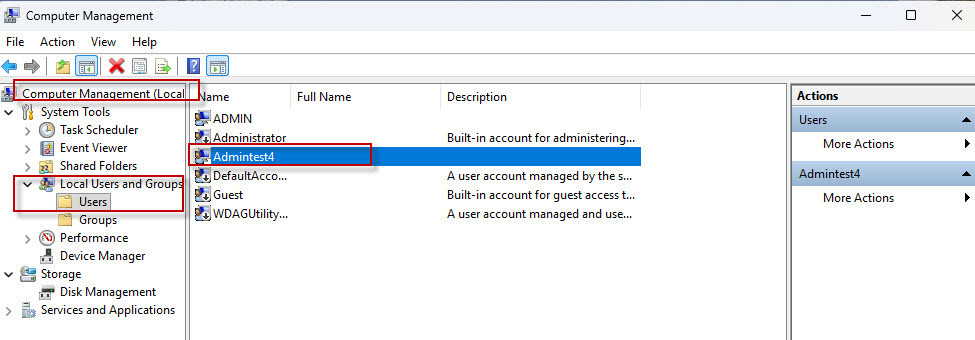
Select the account you want to delete (for example Admintest4).
Step 3: Delete the User
- Right-click the user account.
- Select Delete.
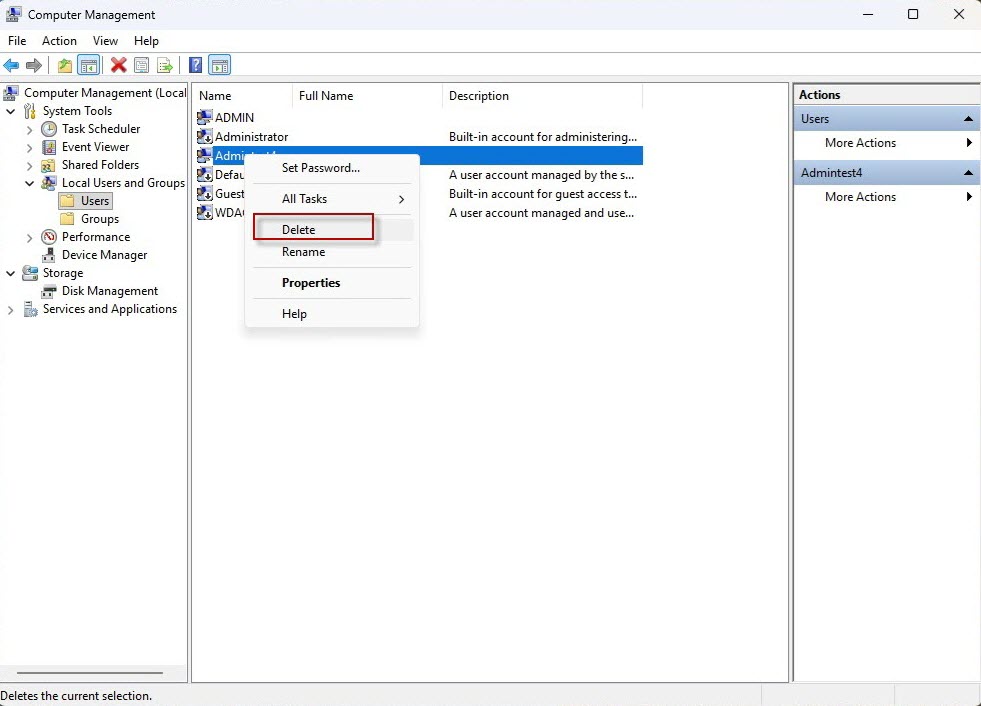
Step 4: Confirm the Prompt
Click:Yes
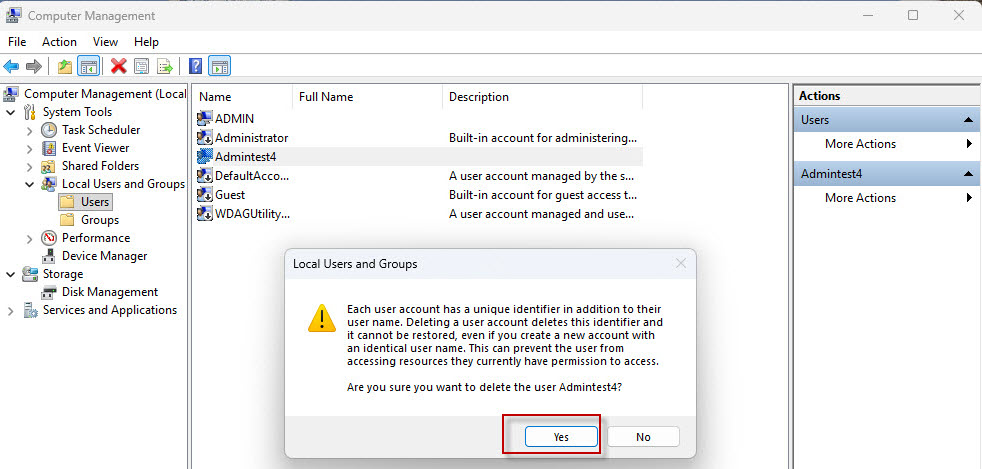
Windows asks for final confirmation.
Click:OK
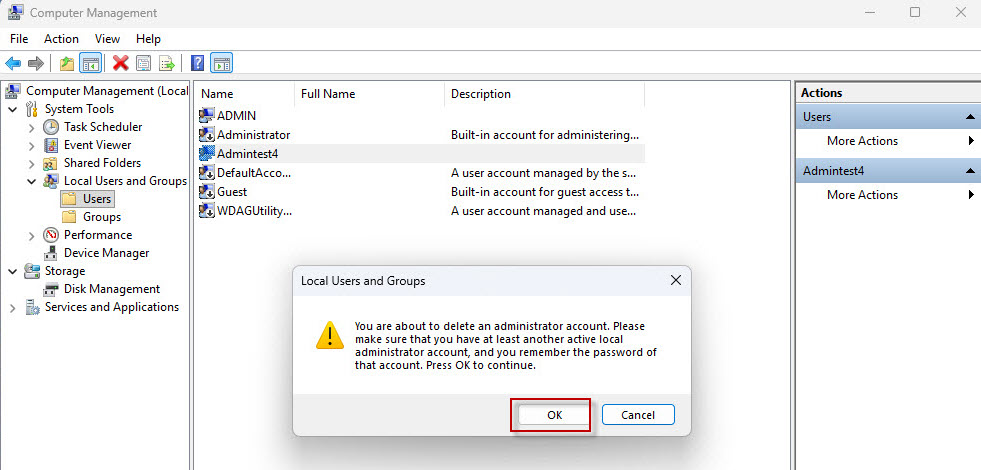
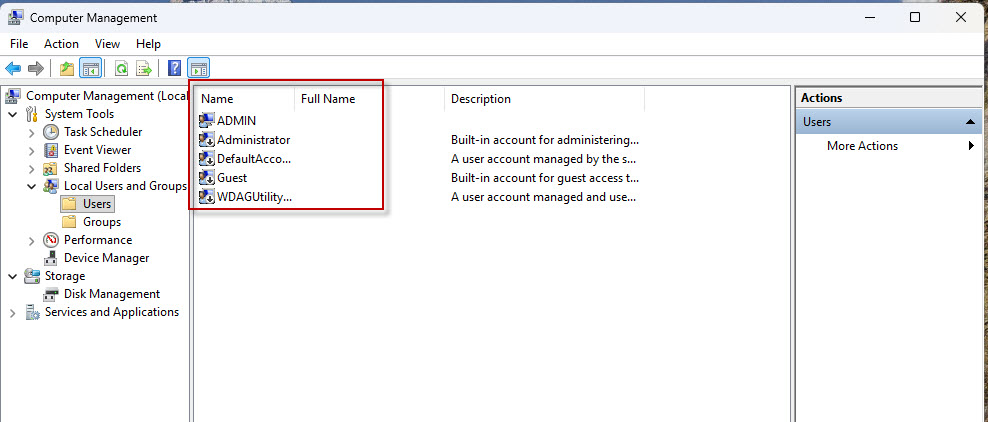
The administrator account is deleted successfully and disappears from the list.
Frequently Asked Questions (FAQs)
Can I delete an administrator account in Windows 11?
Yes. You can delete an administrator account as long as you are logged in with another administrator account.
Can I delete the administrator account I’m currently using?
No. Windows does not allow you to delete the account that is currently signed in.
Will deleting a user account remove its files?
It depends on the method used. Windows may ask whether you want to keep or delete the user’s files. If you choose Delete Files, the user’s personal data is permanently removed.
Which method is the easiest?
The Settings app is the easiest and recommended method for most users, while Command Prompt is the fastest for advanced users.
Windows 11 provides several simple ways to delete administrator or standard user accounts. You can use Command Prompt, Control Panel, Settings, or Computer Management, depending on your preference. Before deleting any account, ensure you are logged in with another administrator account and back up any important data associated with the user.