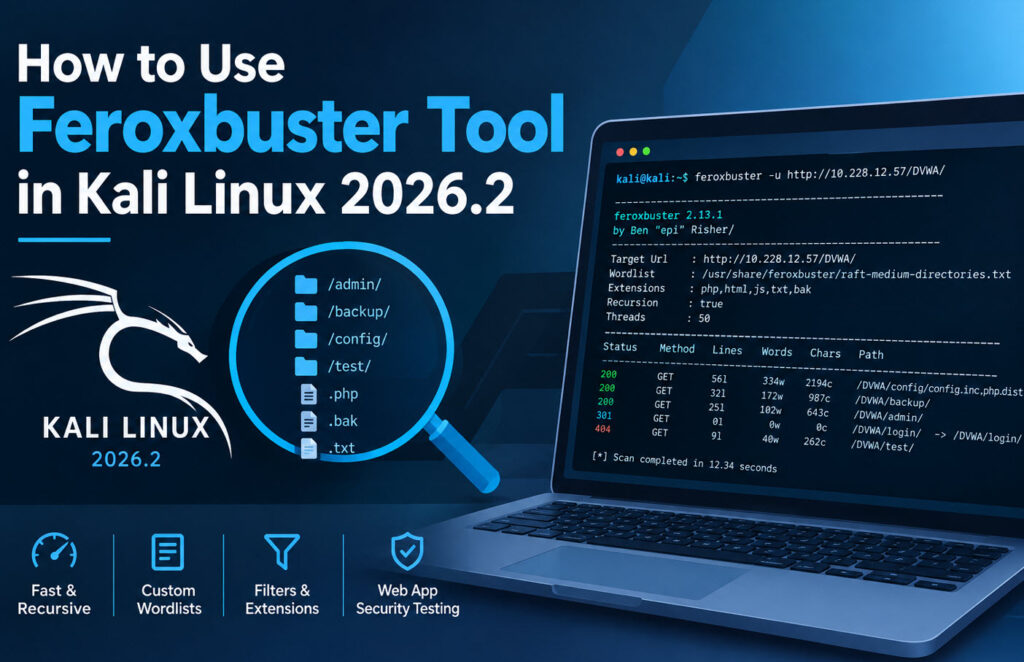
Feroxbuster is a fast and lightweight content discovery tool used by penetration testers and security researchers to find hidden directories and files in web applications. It can help identify resources such as backup files, administrative panels, configuration files, test directories, and other web content that may not be directly linked from a website.
In this tutorial, you will learn how to use Feroxbuster in Kali Linux 2026.2 and explore some of its most useful options for web application security testing.
Note: Perform content discovery only against websites and applications that you own or have explicit permission to test. The examples in this tutorial use DVWA in a local XAMPP lab environment.
What Is Feroxbuster?
Feroxbuster is a fast, simple, and recursive content discovery tool. It uses wordlists to make requests to a target web application and identify valid directories and files.
During a security assessment, it can help discover resources such as:
- Hidden directories
- Login and administration panels
- Backup files
- Configuration files
- Debug and test directories
- JavaScript and HTML files
- Other files with commonly used extensions
Feroxbuster also supports recursion, custom wordlists, file extensions, HTTP status code filtering, response-size filtering, authentication headers, and output formats.
Installing Feroxbuster on Kali Linux
Feroxbuster is generally available in Kali Linux. First, check whether it is already installed:
feroxbusterIf it is not installed, you can install it using:
sudo apt install feroxbusterAfter installation, verify the installed version :
feroxbuster --version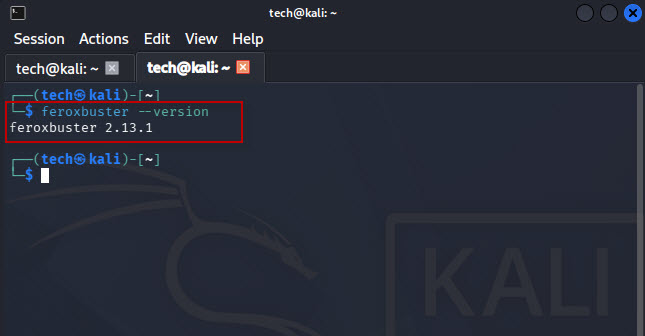
Check the Feroxbuster Help
Before starting a scan, you can use the help option to view the available commands and options:
feroxbuster --help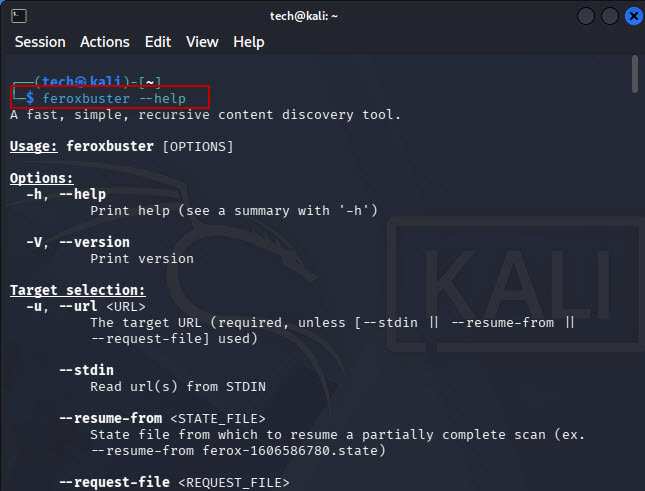
The help output provides information about wordlists, recursion, filtering, headers, extensions, output options, and other features.
Basic Feroxbuster Syntax
The basic syntax for scanning a web application is:
feroxbuster -u <Target-URL>For example:
feroxbuster -u http://10.228.12.57/DVWA/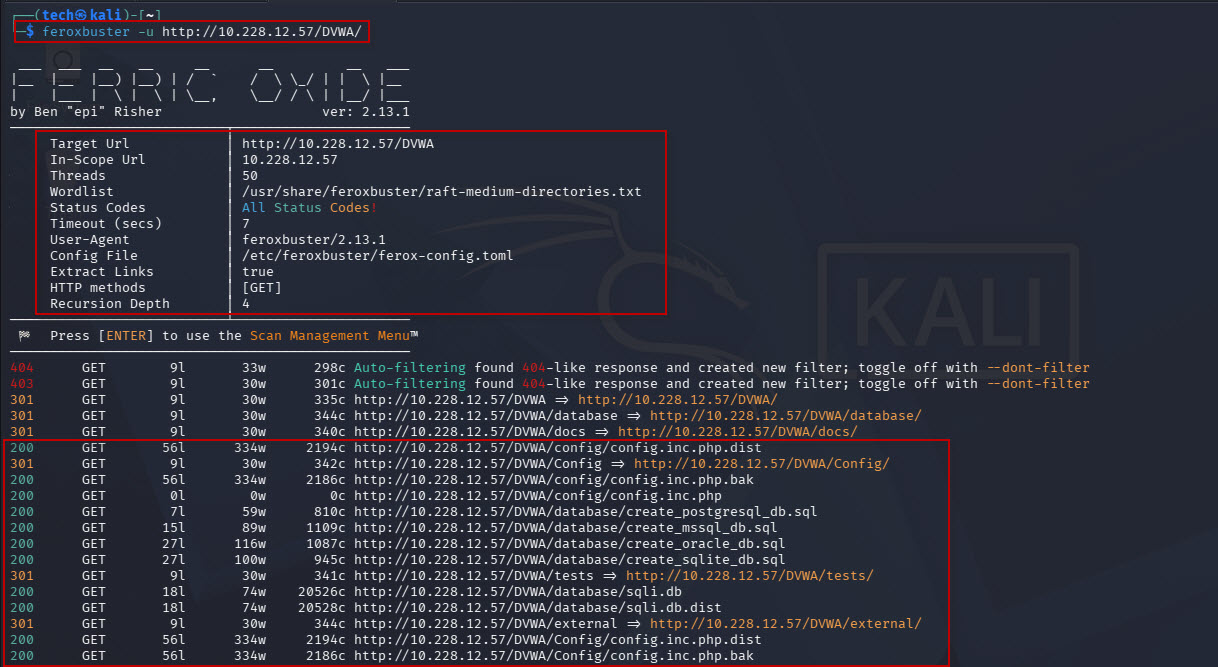
In this example, DVWA is being used as a sample testing application hosted on a local XAMPP server.
The -u option specifies the target URL.
By default, Feroxbuster can use its bundled wordlist, such as: /usr/share/feroxbuster/raft-medium-directories.txt
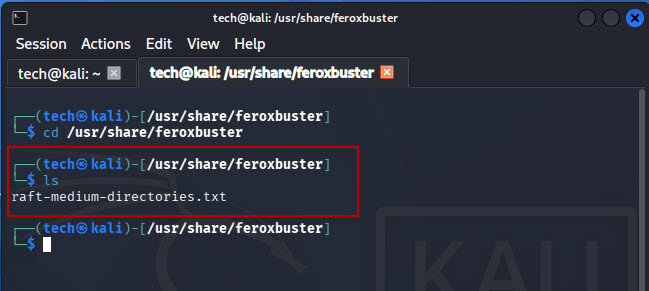
You can also specify your own wordlist when you want to perform more targeted content discovery.
Understanding Feroxbuster Output
A typical result may look similar to:
200 GET 56l 334w 2194c http://10.228.12.57/DVWA/config/config.inc.php.distThe output contains several useful fields.
HTTP Status Code
200 : This is the HTTP response status code returned by the web server.
For example: 200, 301, 302, 403, 404
HTTP Method
GET : This shows the HTTP method used for the request.
Lines
56l : This indicates the number of lines in the response.
Words
334w : This represents the number of words in the response.
Characters
2194c :This indicates the approximate number of characters in the response.
Discovered URL
The final part of the result shows the discovered resource: http://10.228.12.57/DVWA/config/config.inc.php.dist
Feroxbuster can continue discovering content recursively depending on the options used.
Using a Custom Wordlist
A custom wordlist can be useful when you want more targeted results or want to reduce unnecessary requests.
Use the -w option:
feroxbuster -u http://10.228.12.57/DVWA/ -w /usr/share/wordlists/dirbuster/directory-list-2.3-medium.txt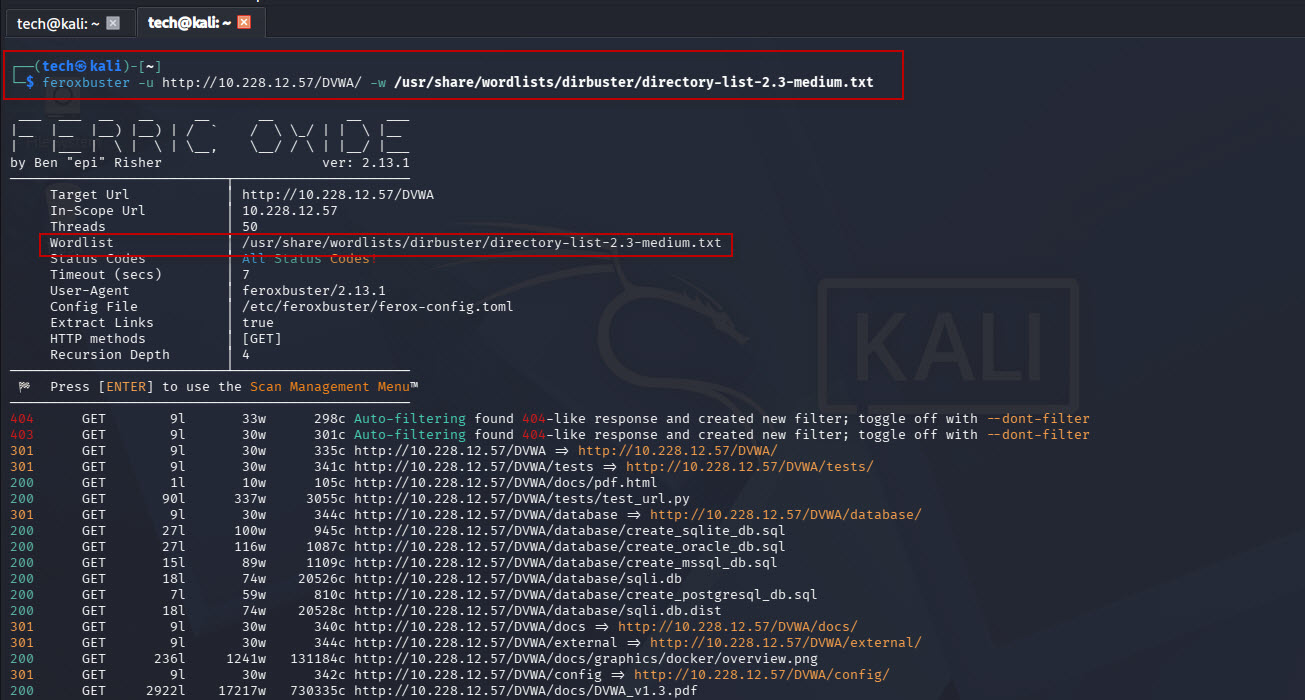
The selected wordlist is used to generate directory and file requests against the target.
Choosing an appropriate wordlist can improve both scan efficiency and the quality of discovered results.
Scanning Specific File Extensions
The -x option allows you to append file extensions to each wordlist entry.
For example:
feroxbuster -u http://10.228.12.57/DVWA/ -x php,html,js,txt,bak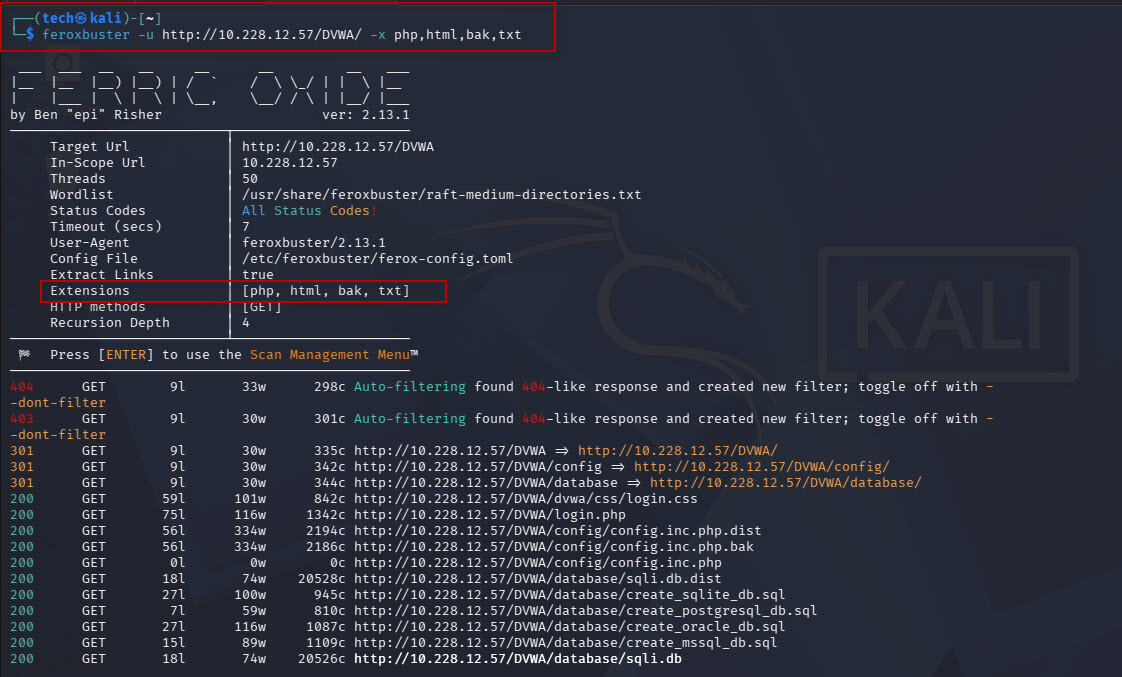
For a word such as: login
Feroxbuster can test variations such as: login.php,login.html,login.js,login.txt,login.bak.
You can also specify a single extension:
feroxbuster -u http://10.228.12.57/DVWA/ -x php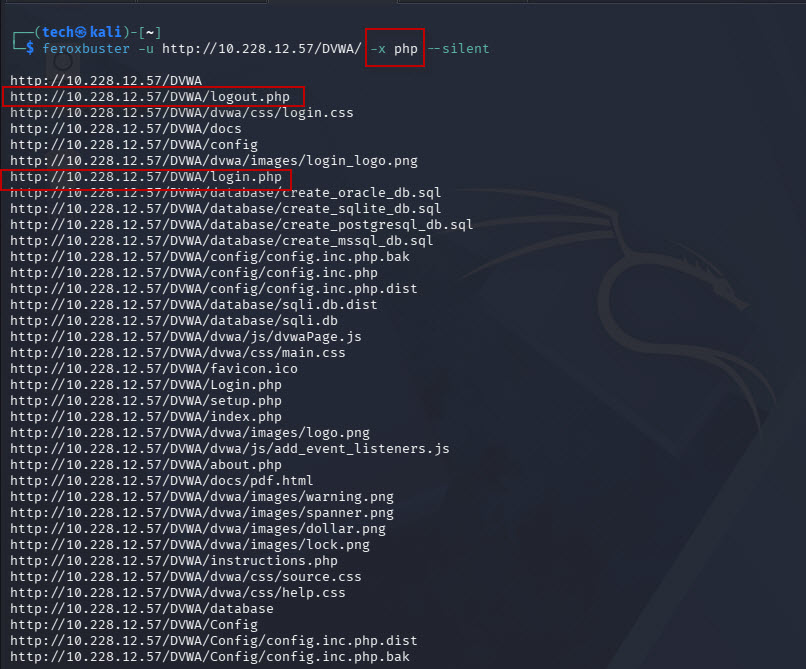
Control Recursion Depth
Feroxbuster can recursively scan discovered directories. You can control how deep the scan should continue with the –depth option.
For example:
feroxbuster -u http://10.228.12.57/DVWA/ --depth 2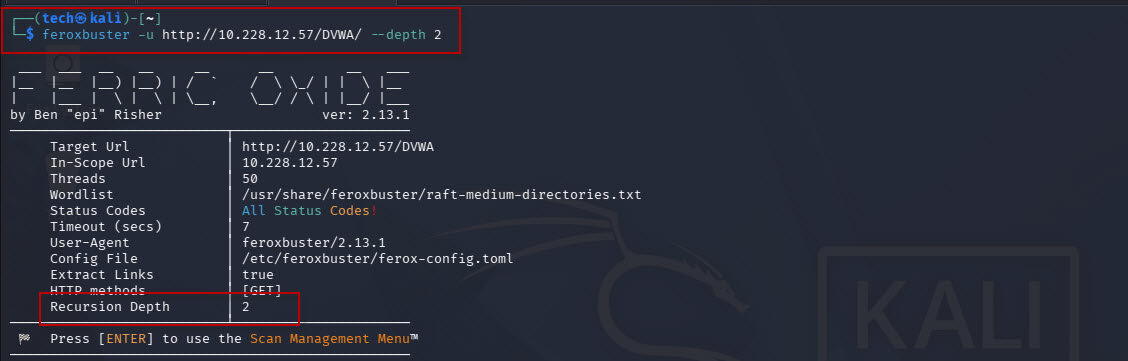
This limits recursive discovery to the specified depth.
Controlling recursion can help keep scans focused and reduce unnecessary requests.
Filter HTTP Status Codes
You can specify which status codes should be displayed using –status-codes.
For example:
feroxbuster -u http://10.228.12.57/DVWA/ --status-codes 200,404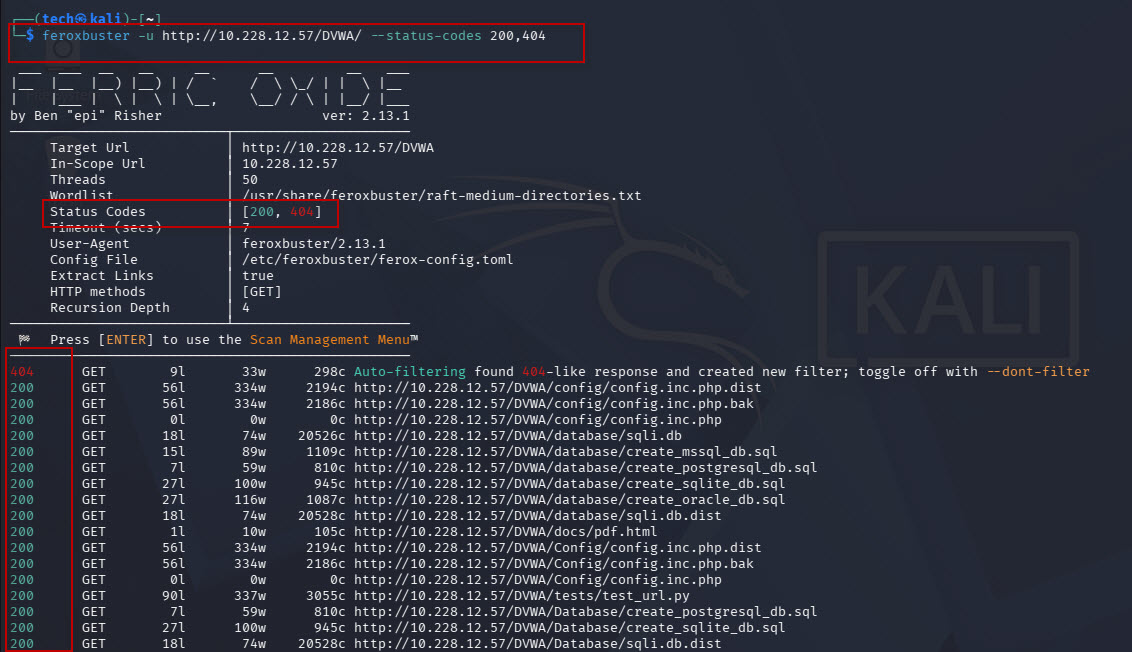
This tells Feroxbuster to display responses matching the specified status codes.
You can also exclude a status code using –filter-status.
For example:
feroxbuster -u http://10.228.12.57/DVWA/ --filter-status 301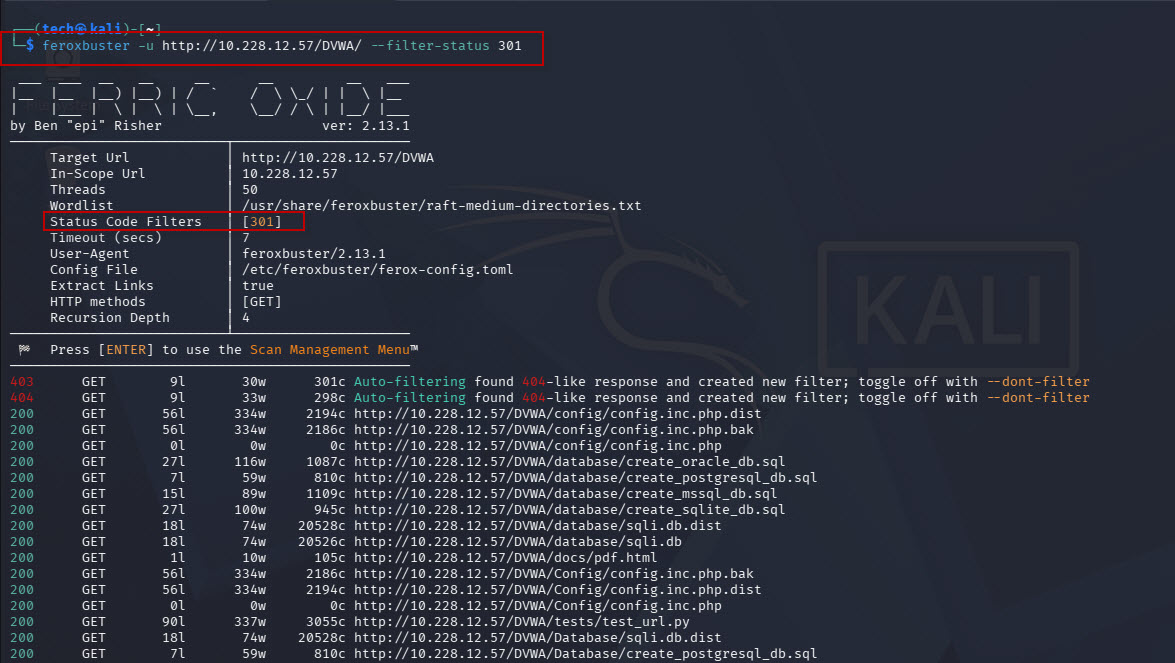
This removes HTTP 301 responses from the displayed results, which can make the output easier to review.
Use Authentication Cookies
Some web applications require authentication before certain resources can be accessed.
You can provide an HTTP cookie using the -H option:
feroxbuster -u http://10.228.12.57/DVWA/ -H "Cookie: PHPSESSID=YOUR_SESSION_ID"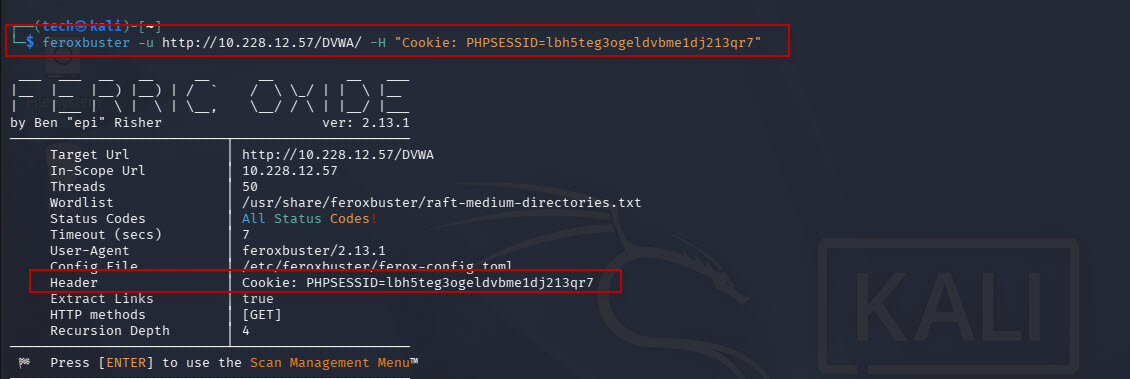
Replace YOUR_SESSION_ID with a valid session value from your authorized test environment.
Authenticated content discovery can be useful when important directories or files are available only after login.
Use an Authorization Token
If the application uses a bearer token for authentication, you can provide it through an HTTP header:
feroxbuster -u http://10.228.12.57/DVWA/ -H "Authorization: Bearer YOUR_TOKEN"Replace YOUR_TOKEN with a valid token from your authorized testing environment.
Save Feroxbuster Results
You can save scan results to a text file using the -o option:
feroxbuster -u http://10.228.12.57/DVWA/ -o feroxbuster_output.txt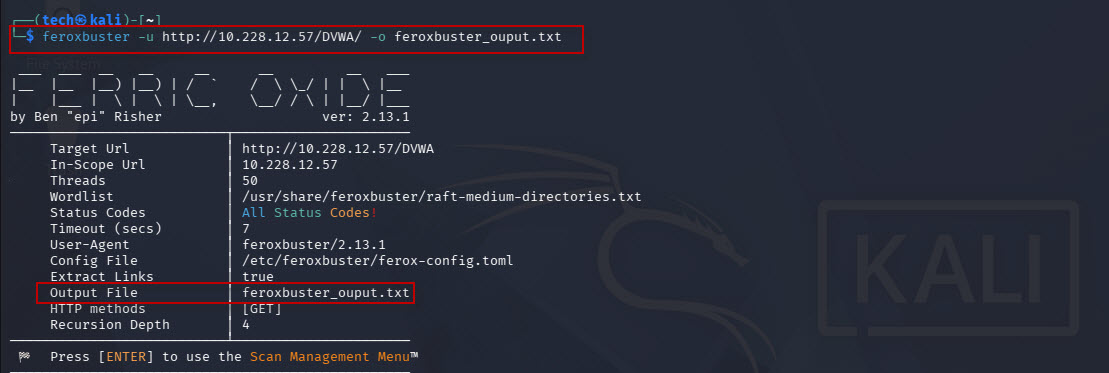
You can then view the saved results using:
cat feroxbuster_output.txtSaving scan results is useful when you need to review or document your findings later.
Save Results in JSON Format
Feroxbuster also supports JSON output.
For example:
feroxbuster -u http://10.228.12.57/DVWA/ --json -o feroxbuster_output.json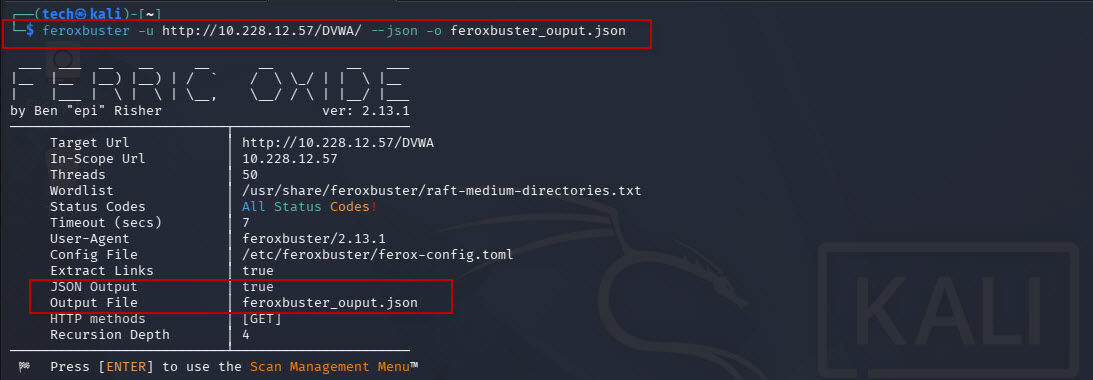
You can view the generated file with:
cat feroxbuster_output.json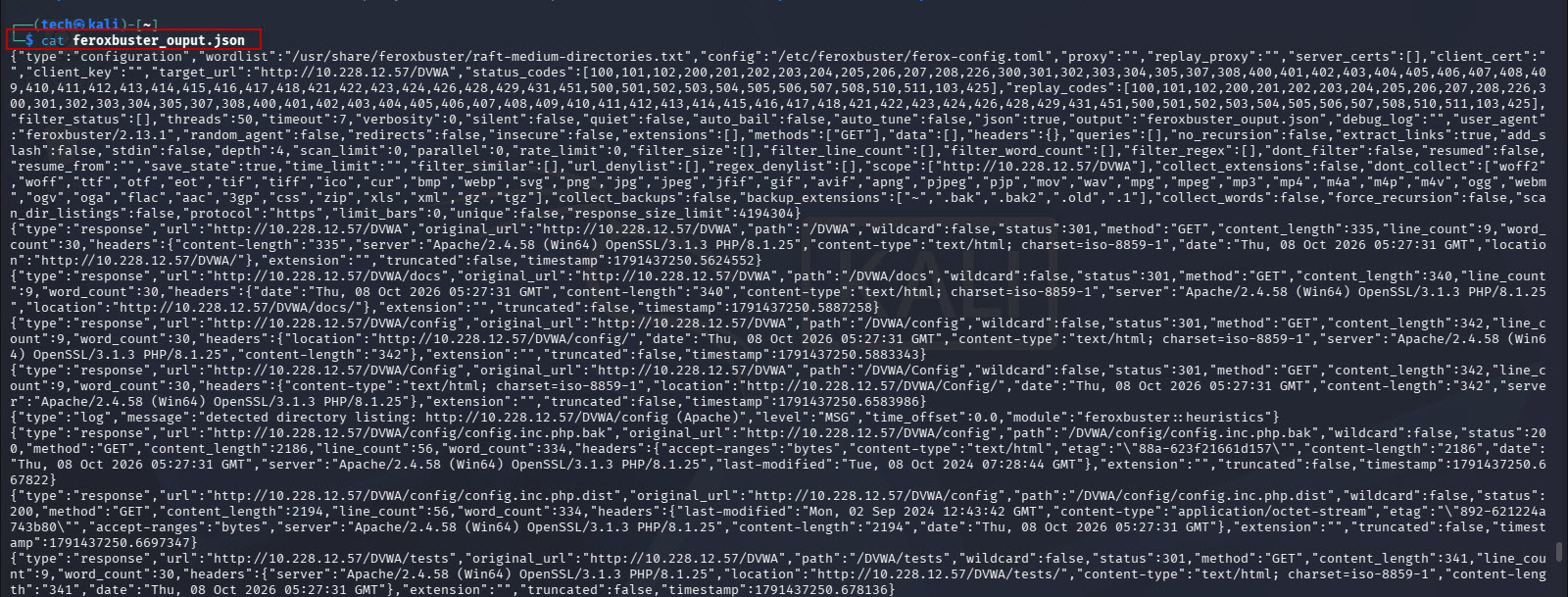
JSON output can be useful when integrating scan results into other tools or processing the results programmatically.
Display Only Discovered URLs
The –silent option can be used when you want cleaner output:
feroxbuster -u http://10.228.12.57/DVWA/ --silent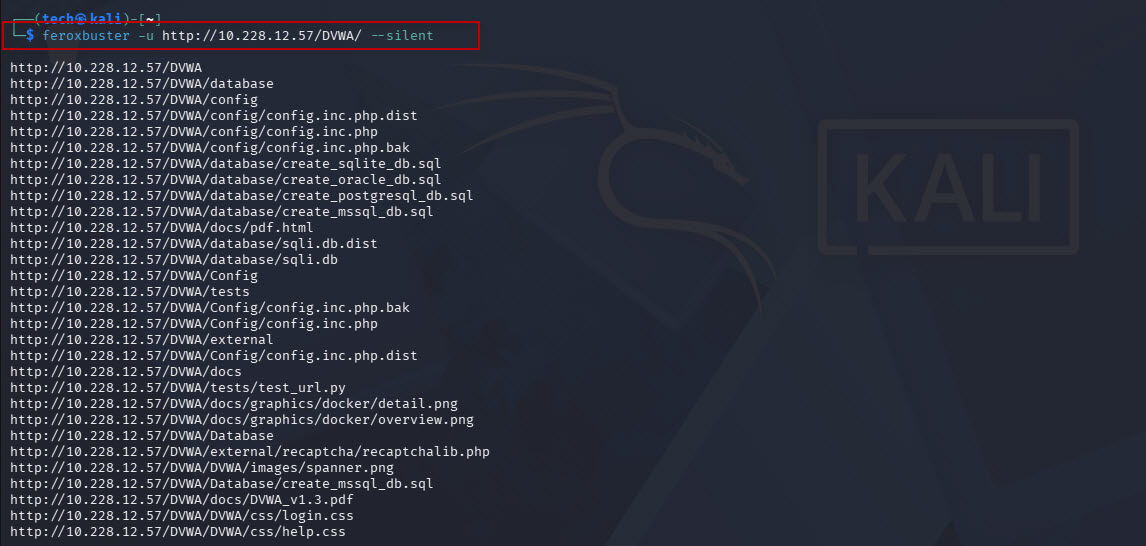
This is particularly useful when you are interested mainly in the discovered URLs rather than the complete scan information.
Use a Custom User-Agent
Feroxbuster uses its own User-Agent by default. In some authorized testing environments, a web server or WAF may treat automated requests differently based on the User-Agent.
You can specify a custom User-Agent using the -a option:
feroxbuster -u http://10.228.12.57/DVWA/ -a "Mozilla/5.0 (Windows NT 10.0; Win64; x64)"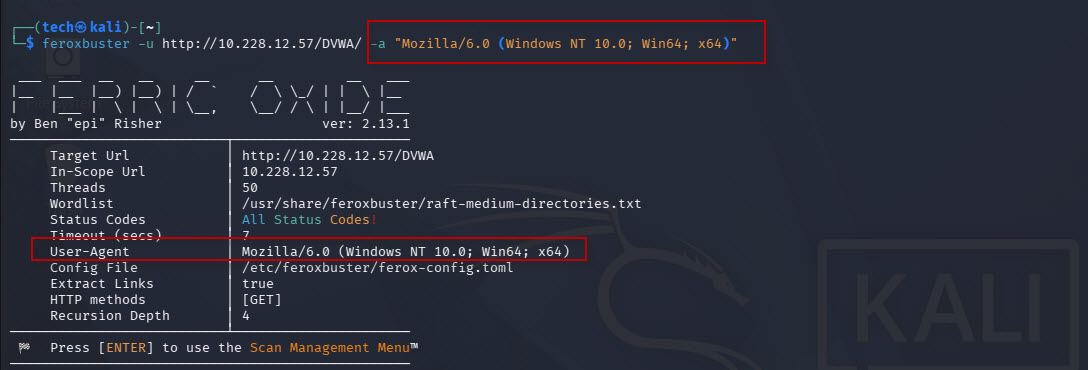
Use a User-Agent that accurately represents your testing setup and do not use this option to bypass security controls without authorization.
Disable Recursion
If you do not want Feroxbuster to recursively scan discovered directories, use:
feroxbuster -u http://10.228.12.57/DVWA/ --no-recursion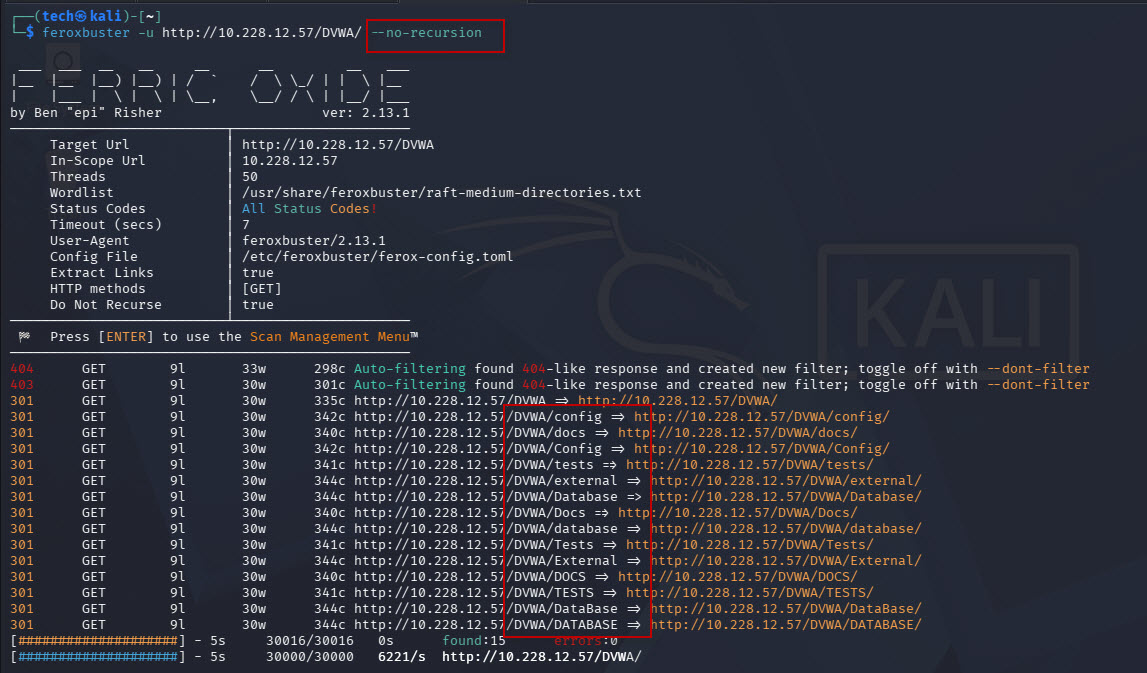
The –no-recursion option keeps the scan focused on the specified target level.
Filter Responses by Size
Sometimes an application returns similar responses for nonexistent and existing resources. Response-size filtering can help reduce this type of noise.
You can exclude responses with a specific size using:
feroxbuster -u http://10.228.12.57/DVWA/ --filter-size 123You can also filter based on the number of words:
feroxbuster -u http://10.228.12.57/DVWA/ --filter-words 30Or the number of lines:
feroxbuster -u http://10.228.12.57/DVWA/ --filter-lines 9These options can be helpful when tuning a scan and removing repetitive or unwanted responses.
Conclusion
Feroxbuster is a useful content discovery tool included in Kali Linux that can help security testers identify hidden directories and files in web applications. Its support for custom wordlists, file extensions, recursion, authentication headers, status-code filtering, response filtering, and multiple output formats makes it useful for web application security testing.
In this tutorial, you learned how to install and verify Feroxbuster, perform a basic scan, use custom wordlists, scan specific file extensions, control recursion, filter responses, provide authentication headers, save results, and customize the output.
When used responsibly against authorized targets, Feroxbuster can be a valuable part of a web application penetration testing and security assessment workflow.