

Website reconnaissance is one of the first phases of a security assessment or penetration test. Before testing for vulnerabilities, security professionals gather information about the target application, including technologies used, cookies, security headers, server details, and supported HTTP methods. One of the easiest ways to perform this initial analysis is by using the built-in Web Developer Tools available in Mozilla Firefox.
In this tutorial, you will learn how to perform website banner grabbing and basic security reconnaissance using Web Developer Tools. For demonstration purposes, we will use the Damn Vulnerable Web Application (DVWA) hosted locally on a XAMPP server.
Accessing Web Developer Tools
First, open Mozilla Firefox and browse to the DVWA login page: http://localhost/DVWA/login.php
To launch Web Developer Tools:
- Click the three-line menu icon in the upper-right corner.
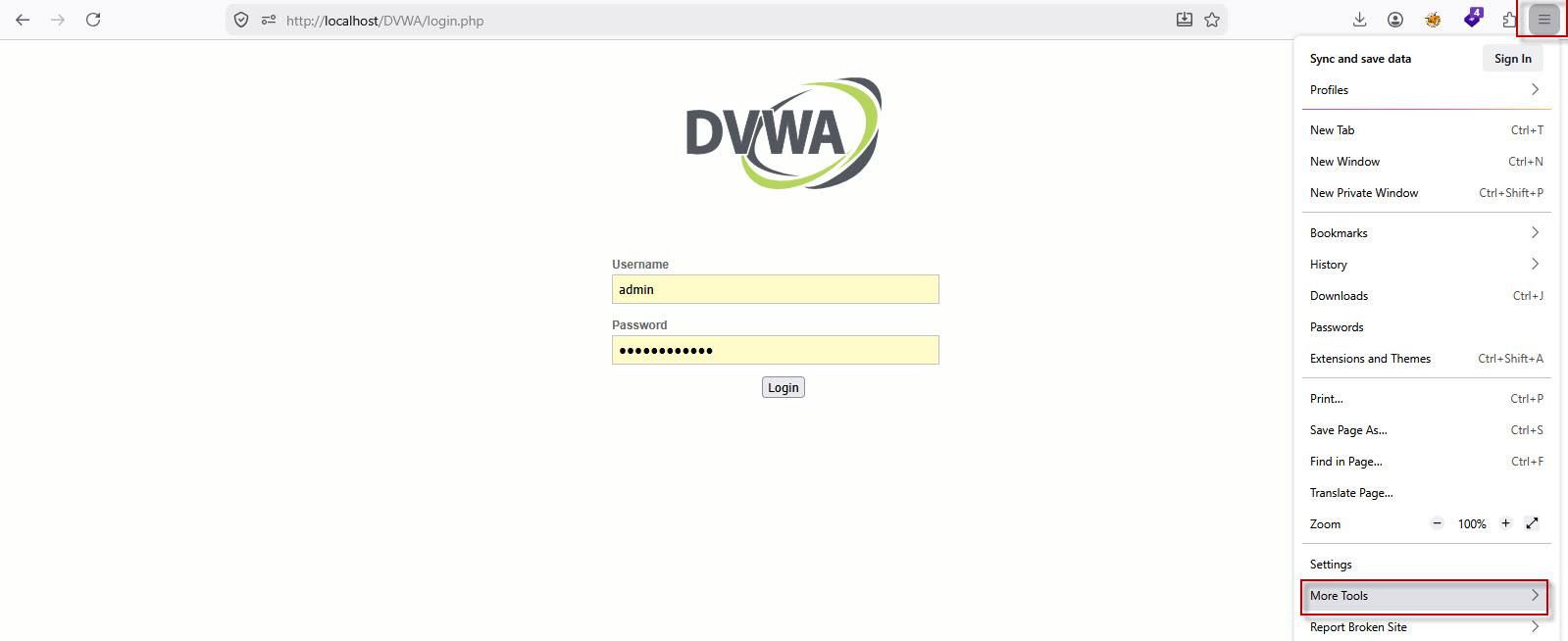
- Select More Tools.
- Click Web Developer Tools.
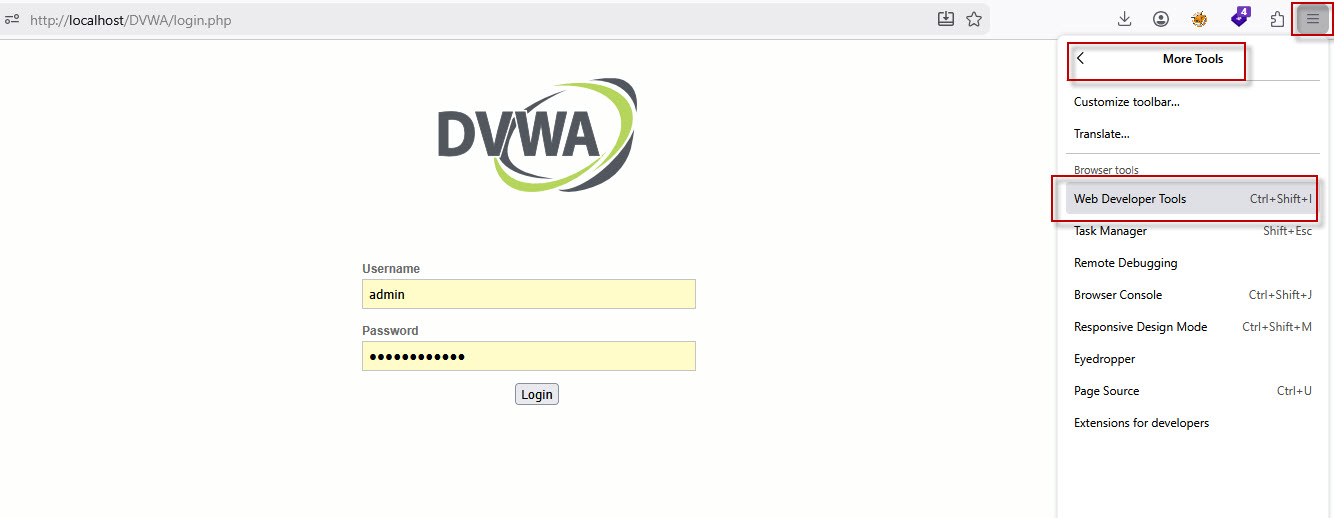
Alternatively, you can use the following keyboard shortcuts:
- F12
- Ctrl + Shift + I

The Web Developer Tools panel will appear at the bottom of the browser window and provide access to various tabs used for website inspection and analysis.
Inspecting HTML Elements
Select the Inspector tab and use the element picker tool to inspect any component on the web page.

This feature allows security testers to review the underlying HTML source code and identify potential security issues. One common check is verifying whether sensitive input fields, such as password fields, have the autocomplete attribute disabled.
For example, if a password field allows autocomplete, browsers may store credentials locally, which could introduce security risks on shared systems. Similarly, other input fields can be reviewed to identify insecure configurations or hidden parameters.
Analyzing Website Cookies
One of the most valuable sections for reconnaissance is the Storage tab.
- Click the Storage tab.
- Expand the Cookies section on the left side.
- Select the current domain.
Web Developer Tool will display all cookies associated with the website. Depending on whether the user is authenticated, cookie values may differ before and after login.
Important Cookie Parameters to Review
Cookie Name
In the DVWA example, the session cookie is named: PHPSESSID
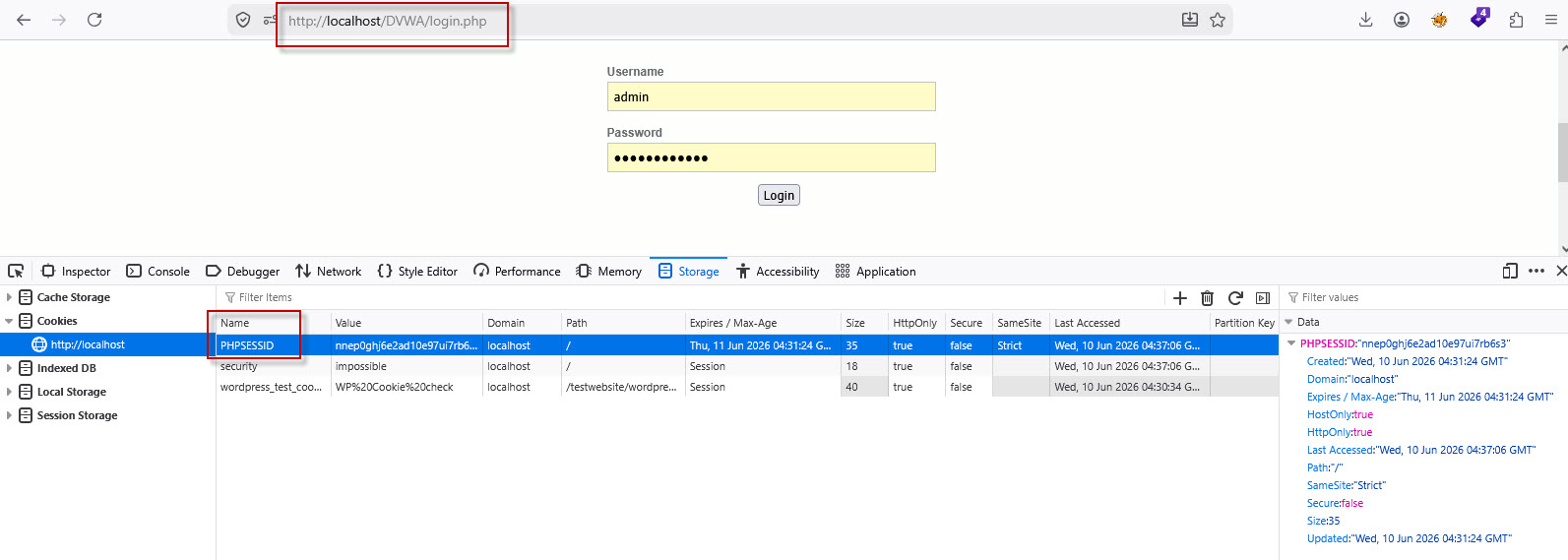
This immediately reveals that the application is running on PHP technology because PHPSESSID is PHP’s default session identifier.
Technology disclosure can assist attackers in identifying potential vulnerabilities specific to that platform.
Cookie Value
Review the cookie value to determine whether it is:
- Predictable
- Encoded
- Decodable
- Properly randomized
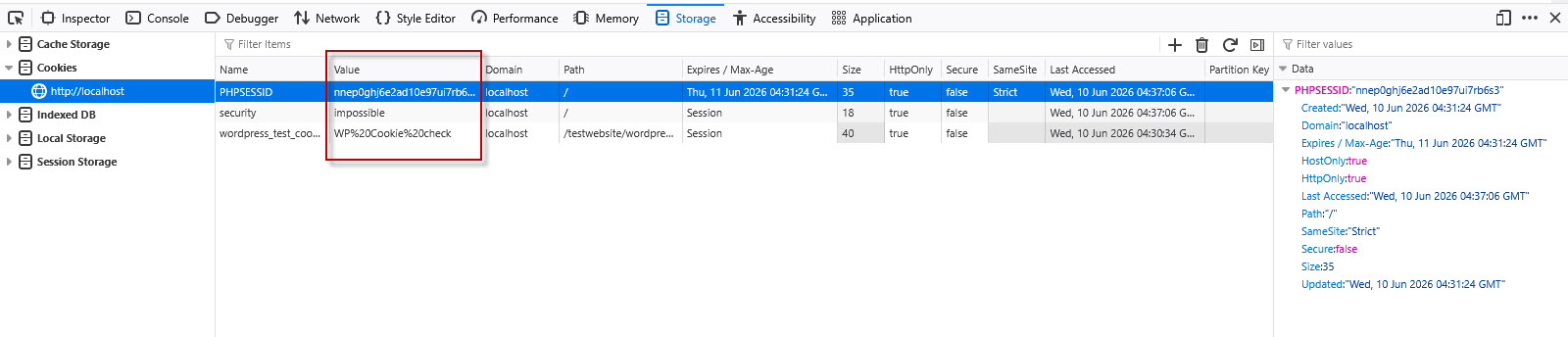
Weak session identifiers can lead to session prediction or session hijacking attacks.
Path and Expiry
Check the cookie path and expiration settings to ensure the session management mechanism follows security best practices.

HttpOnly Attribute
The HttpOnly flag should be enabled.
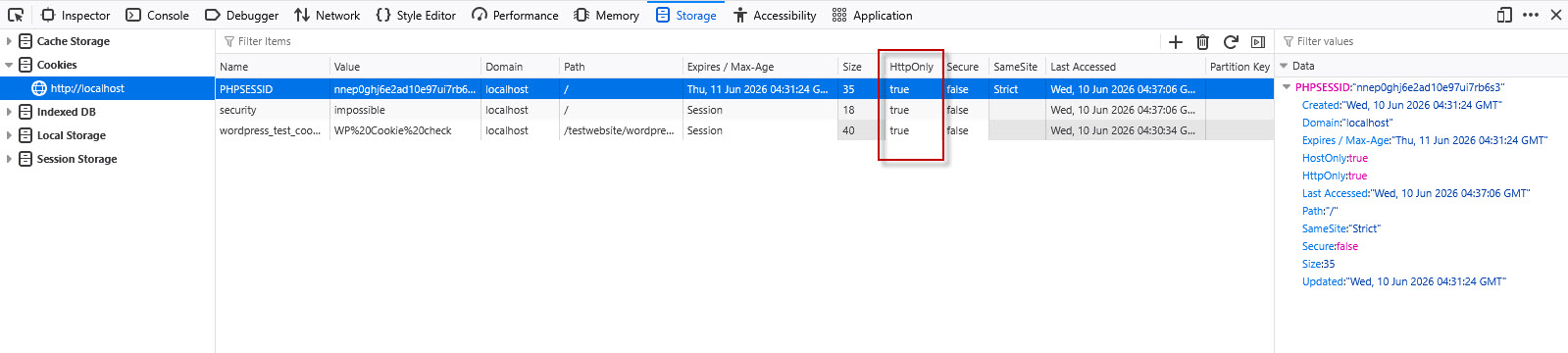
When set to True, JavaScript cannot access the cookie, reducing the risk of session theft through Cross-Site Scripting (XSS) attacks.
If HttpOnly is disabled, it should be documented as a security finding.
Secure Flag
For websites running over HTTPS, the Secure attribute should be enabled.

This ensures cookies are transmitted only through encrypted HTTPS connections and are not exposed over insecure HTTP channels.
SameSite Attribute
The SameSite attribute helps protect against Cross-Site Request Forgery (CSRF) attacks by controlling when cookies are sent with cross-site requests.
Banner Grabbing Through Response Headers
The Network tab is another essential tool for reconnaissance.
- Click the Network tab.
- Select any request from the request list.
- Review the Response Headers section.
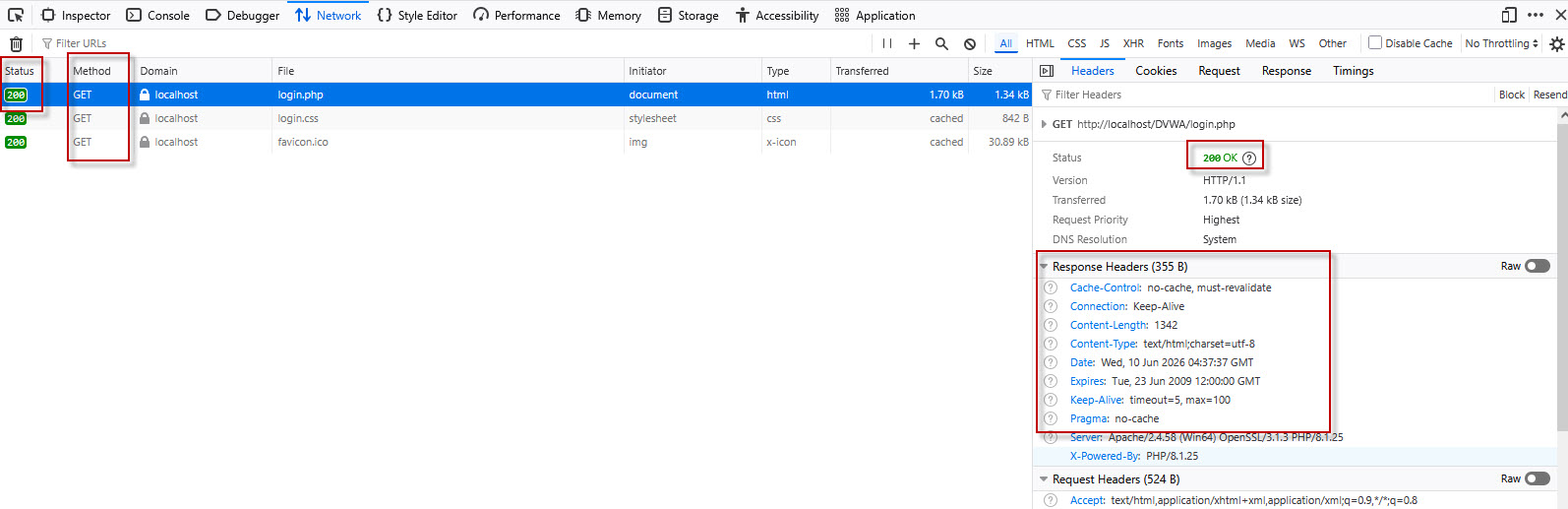
Response headers often reveal valuable information about the web server and application environment.
Security Header Analysis
Review whether important security headers are present, including:
- Strict-Transport-Security (HSTS)
- X-Frame-Options
- Content-Security-Policy (CSP)
- X-Content-Type-Options
- Access-Control-Allow-Origin (CORS)
Missing or misconfigured security headers can expose applications to various attacks such as clickjacking,insecure cross-origin communication etc.
Technology and Version Disclosure
Many websites unintentionally expose technology details through response headers.
Example:
Server: Apache/2.4.58 (Win64) OpenSSL/3.1.3 PHP/8.1.25
X-Powered-By: PHP/8.1.25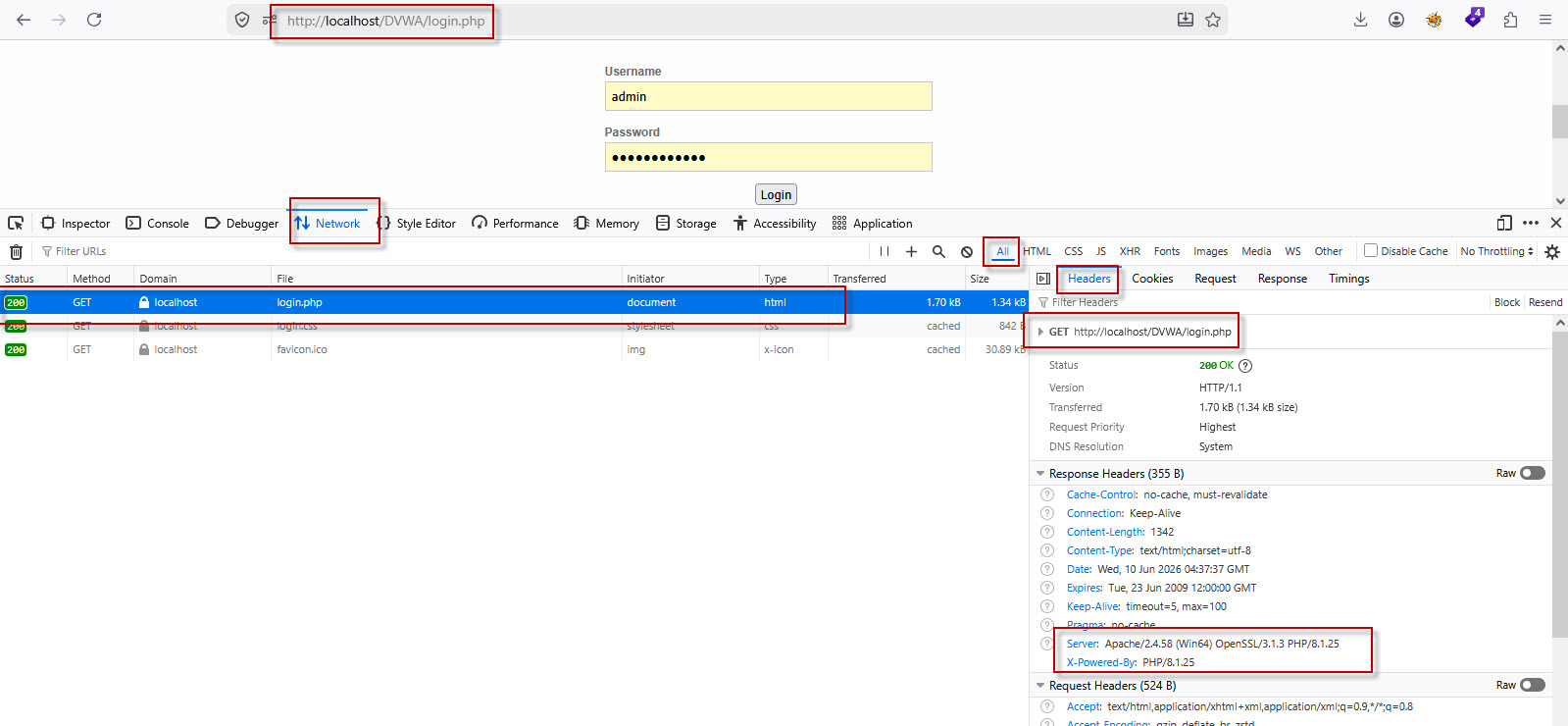
From these headers, an attacker can identify:
- Web server software
- Operating system architecture
- PHP version
- OpenSSL version
Once technology versions are known, attackers often search for publicly disclosed vulnerabilities and available exploits targeting those specific versions.
For this reason, production systems should minimize unnecessary information disclosure whenever possible.
Testing Supported HTTP Methods
Firefox Web Developer Tools can also be used to test supported HTTP methods.
Steps to Test HTTP Methods
- In the Network tab, select a request.
- Right-click the request.
- Choose Edit and Resend.
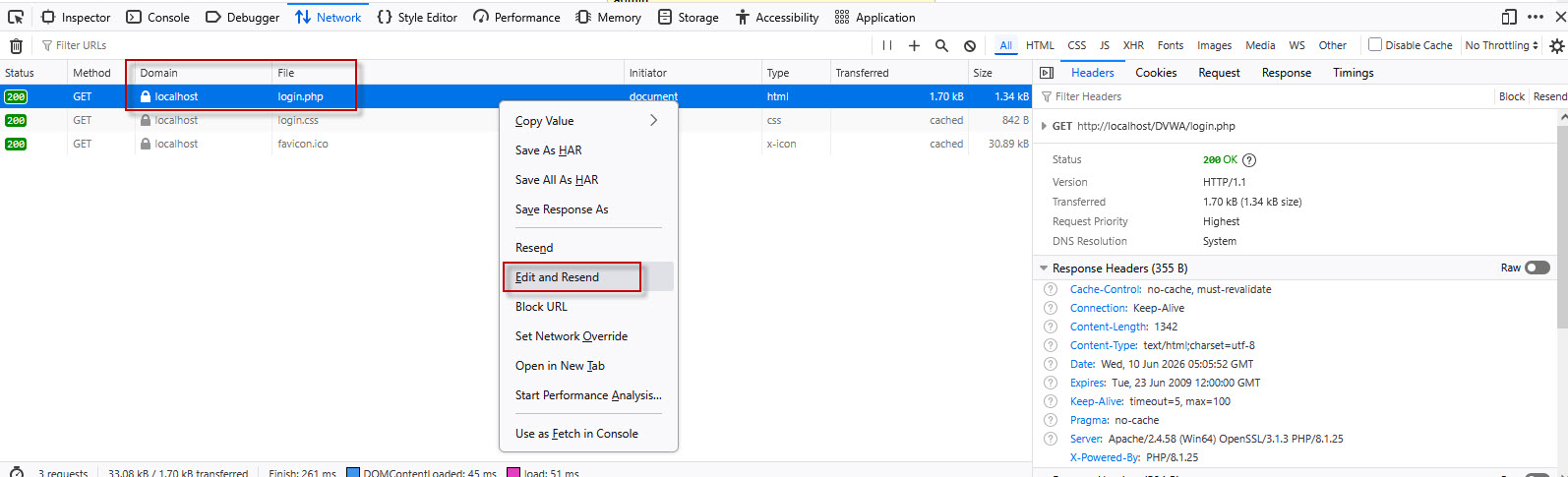
- Locate the HTTP method dropdown.
- Change the method to OPTIONS, PUT, DELETE, TRACE, or another method.
- Click Send.

Observe the server response.
If the response returns 200 OK, the HTTP method is likely enabled and accepted by the application.
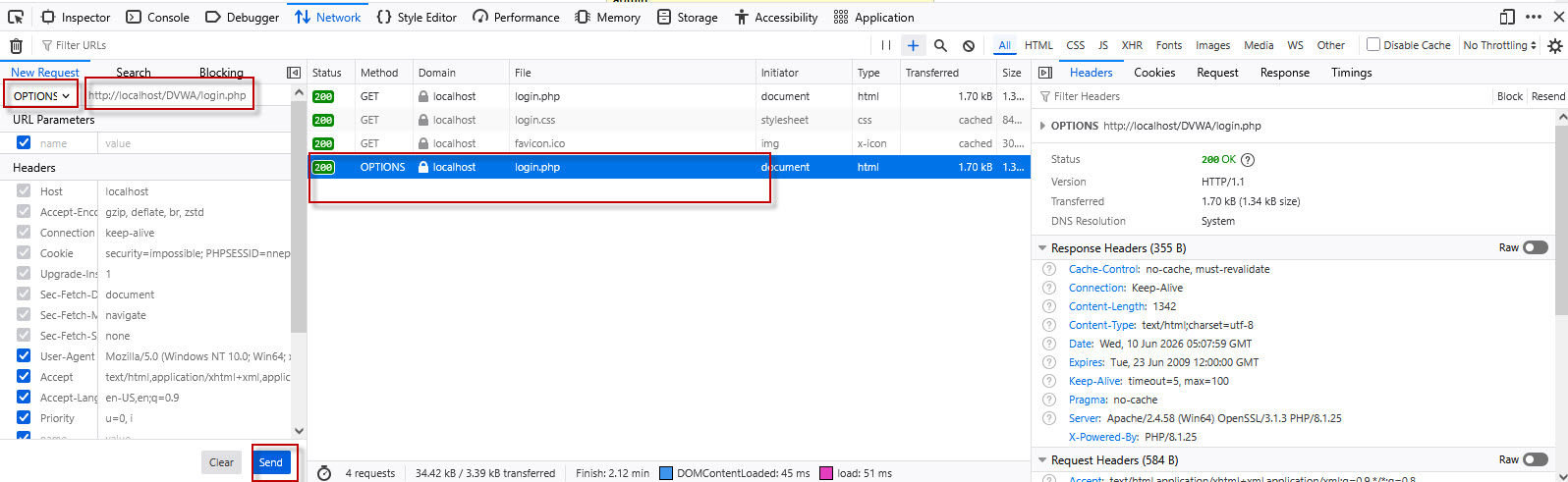
Testing supported methods helps identify potentially dangerous configurations that may allow unauthorized actions or increase the attack surface.
Security Recommendations
To improve the security posture of a web application, consider implementing the following best practices:
- Disable autocomplete for sensitive input fields such as passwords.
- Use generic cookie names that do not disclose backend technologies.
- Enable HttpOnly and Secure flags for authentication cookies.
- Implement essential security headers with secure configurations.
- Hide unnecessary server and framework version information from response headers.
- Configure the SameSite cookie attribute appropriately.
- Disable unnecessary HTTP methods on production servers.
- Regularly review response headers and cookie settings during security assessments.
Web Developer Tools provide a powerful and free method for performing website reconnaissance, banner grabbing, cookie analysis, security header inspection, and HTTP method testing. These capabilities help security professionals quickly identify information disclosure issues and weak security configurations during the initial stages of a web application assessment. By understanding and reviewing these elements, organizations can significantly reduce their attack surface and strengthen the overall security of their web applications.