
Sublime Text is a fast, lightweight, and powerful text editor widely used by developers, programmers, and other users who need a flexible editor. It supports syntax highlighting, multiple programming languages, customizable themes, plugins, and many other productivity features.
In this tutorial, you will learn how to install Sublime Text on Ubuntu 26.04 Desktop using two simple methods:
- Installing Sublime Text through the Terminal using the official APT repository
- Installing Sublime Text through the Ubuntu App Center
In our setup, Ubuntu 26.04 Desktop is installed as a virtual machine in VirtualBox, and we will install Sublime Text on that Ubuntu VM.
Method 1: Install Sublime Text Using the Terminal
The first method uses the official Sublime Text APT repository. This method is useful if you prefer installing and managing applications from the command line.
Step 1: Download the Sublime Text Repository Signing Key
Log in to your Ubuntu 26.04 Desktop virtual machine and open Terminal.
You can use the keyboard shortcut Ctrl + Alt + T to open it.
First, download the official Sublime Text repository signing key with the following command:
wget -qO - https://download.sublimetext.com/sublimehq-pub.gpg | sudo tee /etc/apt/keyrings/sublimehq-pub.asc > /dev/null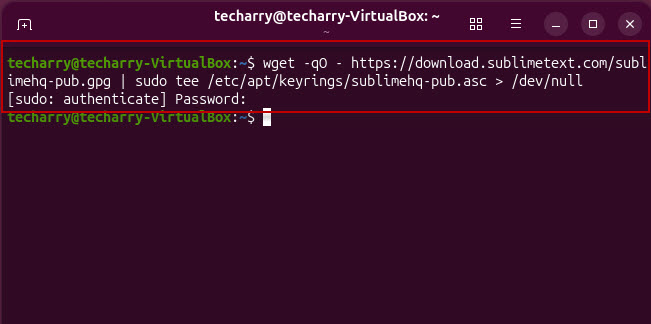
This command downloads the Sublime Text repository’s GPG signing key and saves it as:
/etc/apt/keyrings/sublimehq-pub.asc
The key is used by APT to verify packages obtained from the Sublime Text repository.
Step 2: Add the Sublime Text Repository
Sublime Text provides different release channels, including Stable and Dev.
The Stable channel is generally recommended for normal users because it is intended for production use. Dev releases provide newer development builds and may contain changes that have not received the same level of testing.
For this tutorial, we will use the Stable repository.
Run:
echo -e 'Types: deb\nURIs: https://download.sublimetext.com/\nSuites: apt/stable/\nSigned-By: /etc/apt/keyrings/sublimehq-pub.asc' | sudo tee /etc/apt/sources.list.d/sublime-text.sources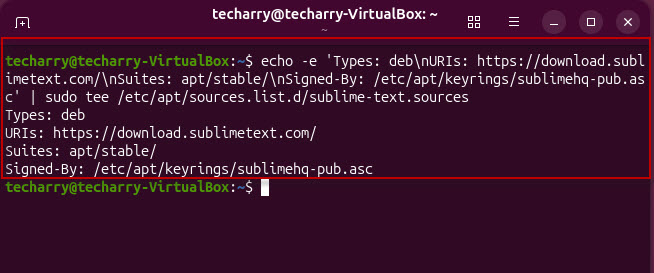
This creates the repository configuration file:
/etc/apt/sources.list.d/sublime-text.sources
The Signed-By entry tells APT to use the previously downloaded Sublime Text signing key when verifying packages from this repository.
Step 3: Update the APT Package Repository
After adding the Sublime Text repository, update Ubuntu’s package information:
sudo apt-get update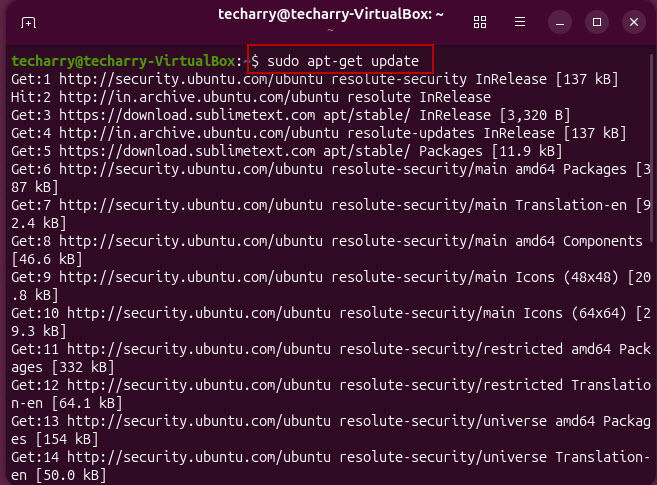
Ubuntu will contact the configured repositories and download the latest available package information, including information from the newly added Sublime Text repository.
Step 4: Install Sublime Text
Now install Sublime Text by running:
sudo apt-get install sublime-text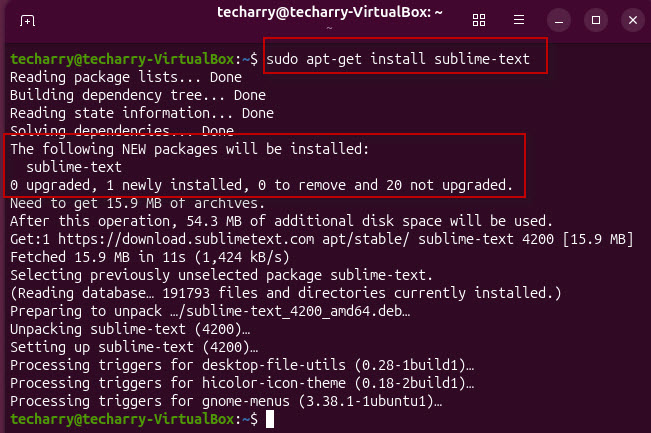
APT will download and install Sublime Text along with any required dependencies.
Once the installation finishes, Sublime Text is ready to use.
Step 5: Launch Sublime Text
You can launch Sublime Text from the Terminal by running:
subl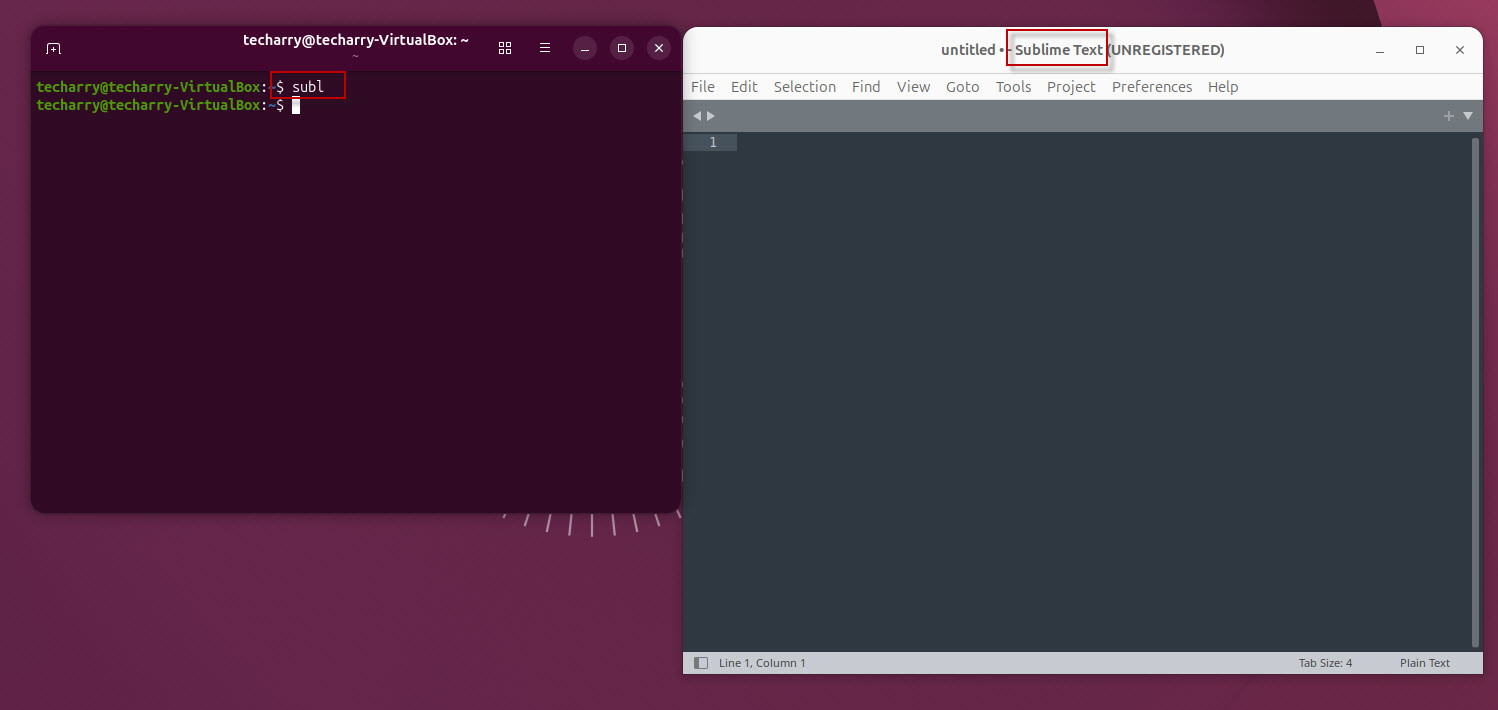
The Sublime Text editor should open.
You can also find Sublime Text from the Ubuntu application menu.
Check the Sublime Text Version
To verify the installed version, run:
subl --version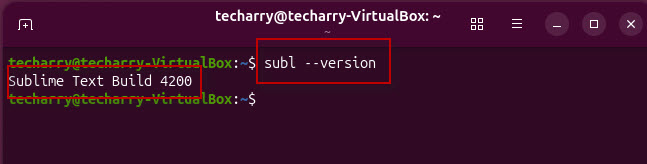
This displays the installed Sublime Text version.
Method 2: Install Sublime Text Using Ubuntu App Center
If you prefer a graphical interface instead of Terminal commands, you can install Sublime Text through the Ubuntu App Center.
Step 1: Open the App Center
Log in to your Ubuntu 26.04 Desktop VM.
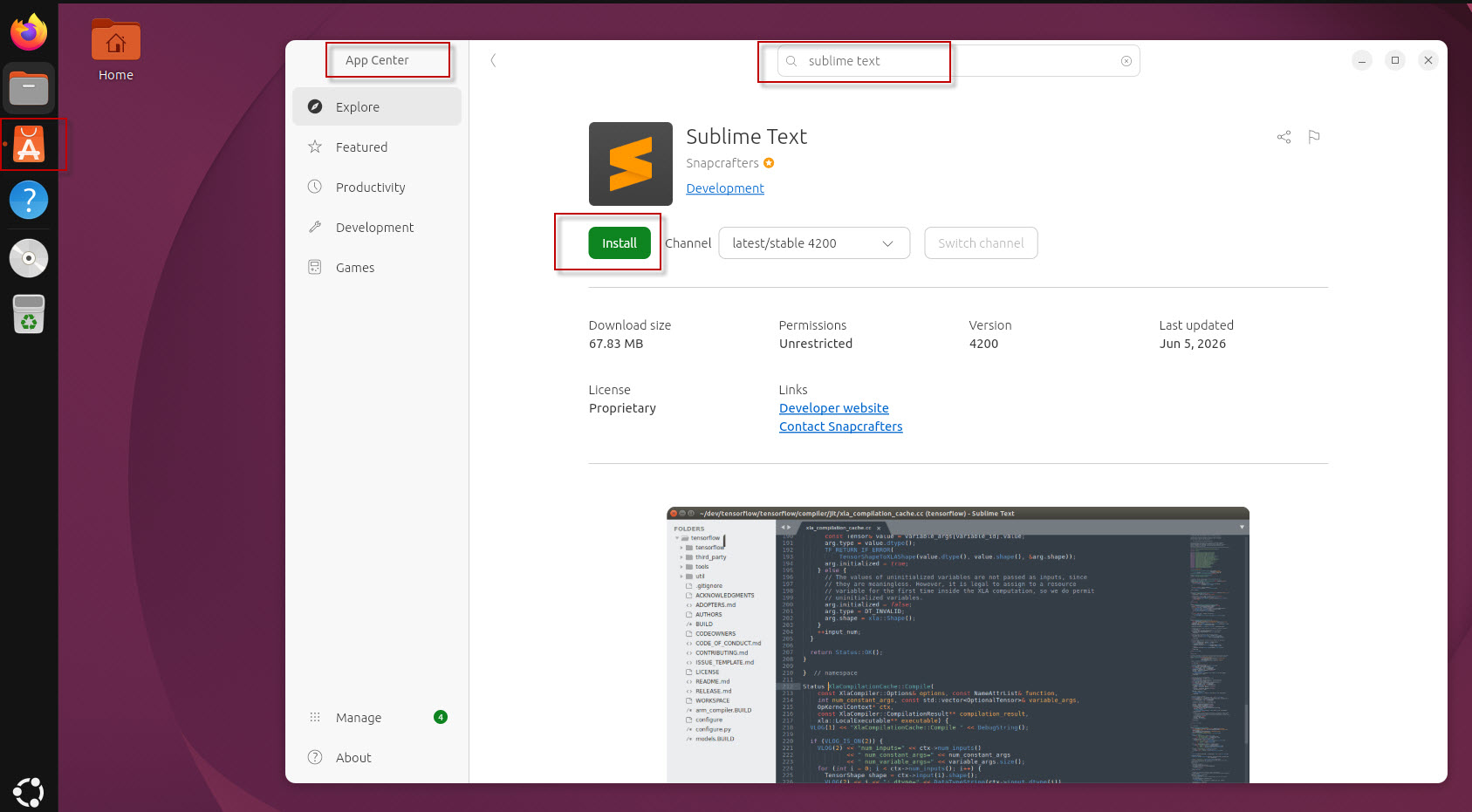
Open the App Center from the Ubuntu application dock or application menu.
Step 2: Search for Sublime Text
In the App Center search box, type: Sublime Text
The Sublime Text application should appear in the search results.
Step 3: Install Sublime Text
Click Sublime Text and select the Install button.
Ubuntu may ask you to enter your user password to authorize the installation.
Enter your password and continue.
The App Center will download and install Sublime Text. The installation time depends on your internet connection and system performance.
Step 4: Launch Sublime Text
After the installation is complete, search for Sublime Text from the Ubuntu application menu.
Click the Sublime Text icon to launch the editor.
Installing Sublime Text Editor on Ubuntu 26.04 Desktop is straightforward. You can either use the official Sublime Text APT repository from the Terminal or install it through the Ubuntu App Center.
For developers and users who regularly work with source code or configuration files, Sublime Text provides a fast and customizable editing environment with syntax highlighting and support for many programming languages.
If you are comfortable with the command line, the APT repository method is a good choice. If you prefer a graphical installation process, the App Center provides an easier alternative.